GSTR 2A, GSTR 2B and GST Notices: Connecting the GST Portal
Three tabs in Finac's GST module read data from the GST portal rather than from the client's own books: GSTR 2A (the running statement of purchases reported by suppliers), GSTR 2B (the fixed monthly statement of input tax credit) and Notices. To use them, the client's GSTIN must be connected to Finac once through the GST portal's API access and an OTP. This article explains the connection, what each tab shows, and how the Show Missing Invoices control finds purchases that a supplier has not reported.
On this page
Connecting a GSTIN
The first time you select a GSTIN on any of these tabs, Finac opens the Validate GST dialog. The connection is made with the client's GST portal username and a one-time password sent by the portal; Finac does not hold the client's portal password.
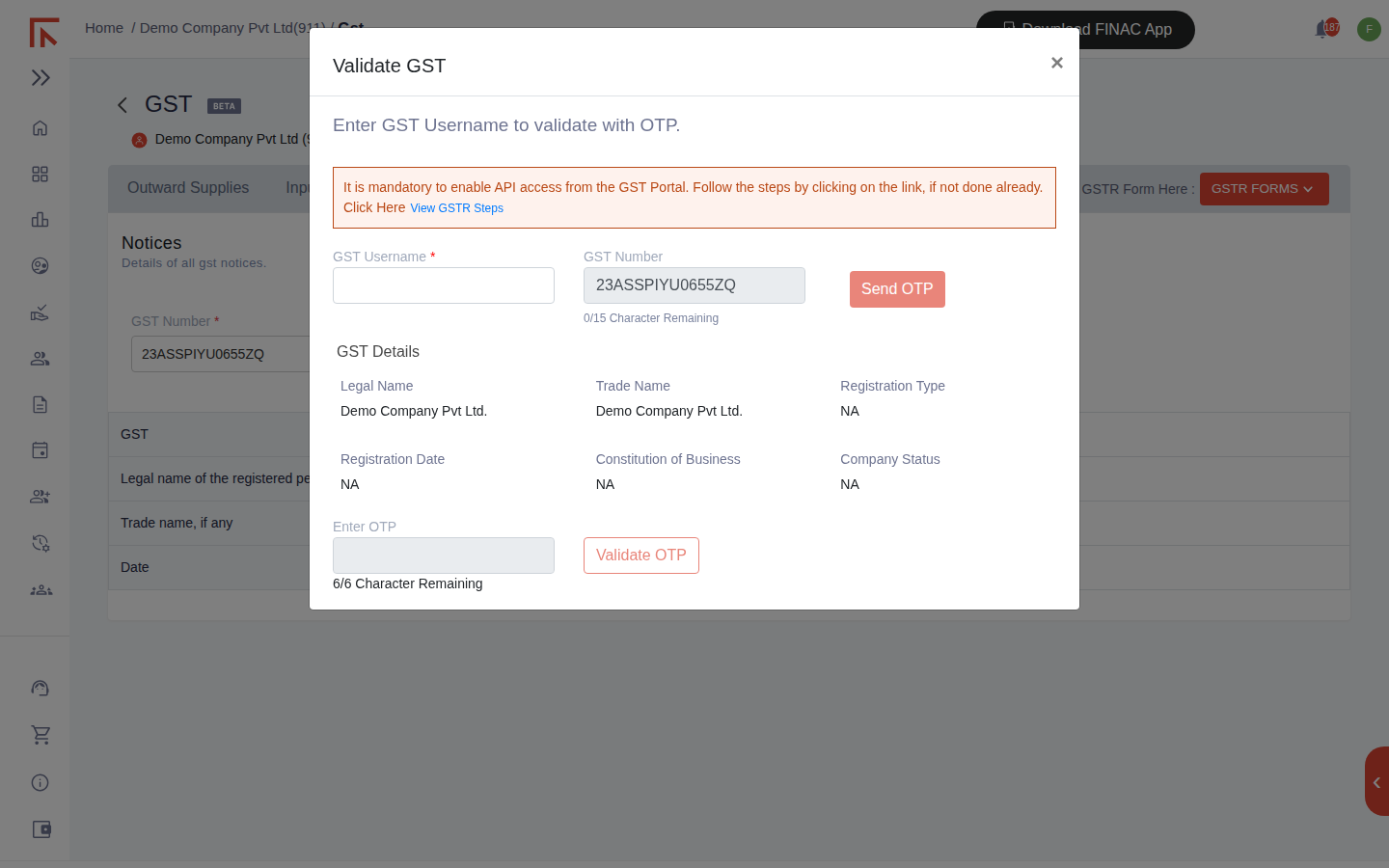
- On the GST portal, enable API access for the GSTIN (My Profile > Manage API Access). The View GSTR Steps link in the dialog opens the steps. Without this, the portal rejects the request.
- In the dialog, enter the client's GST Username (the portal login, not the GSTIN) and select Send OTP. The portal sends the code to the registered mobile number and email.
- Enter the code under Enter OTP and select Validate OTP.
The session the portal grants lasts for a limited period, after which the dialog appears again and a fresh OTP is needed. Each GSTIN of the client is connected separately.
GSTR 2A
Select the GSTR 2A tab, choose the GSTIN, the Period and, optionally, a Data Type (B2B, credit and debit notes, or all), then select Refresh to pull the statement from the portal.
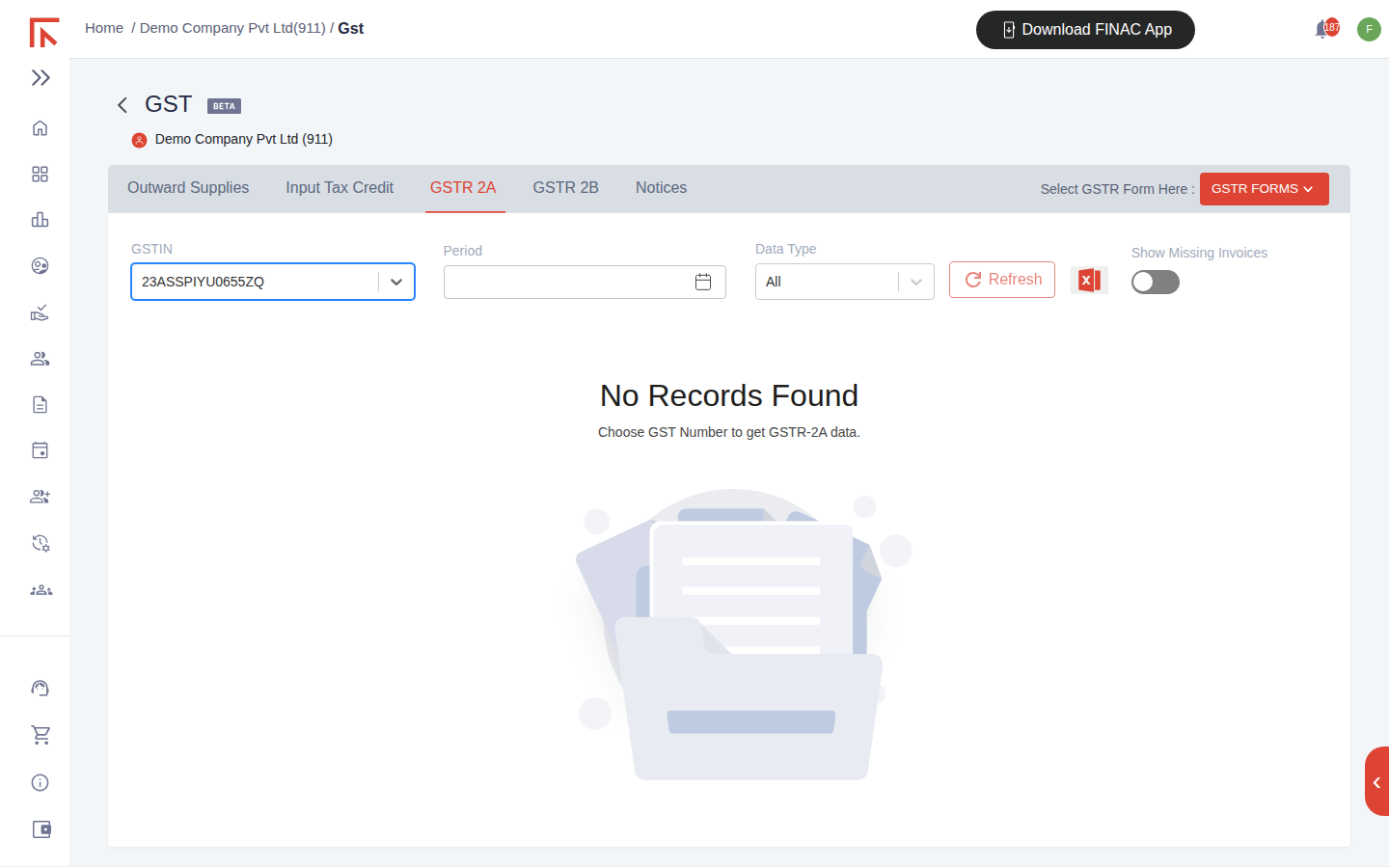
GSTR 2A is dynamic: it changes as suppliers file or amend their GSTR-1. Each row is a supplier invoice as the supplier reported it, with GSTIN, invoice number, date, taxable value and tax. Finac compares these rows against the purchase invoices recorded under Input Tax Credit, and the GSTR 2A column on that tab shows whether each of the client's own purchase invoices has been found in the statement.
GSTR 2B
The GSTR 2B tab works the same way, for the static monthly statement the portal generates after the GSTR-1 filing deadline. Because GSTR 2B is fixed once generated, it is the statement to reconcile against before claiming credit in GSTR-3B: credit for the month is limited to what appears in it. The GSTR 2B column on the Input Tax Credit tab records the match for each purchase invoice, and the Sync GSTR2A/2B Status button on that tab refreshes both columns after a new pull.
Show Missing Invoices
Switch on Show Missing Invoices on either tab to invert the view: instead of listing what the suppliers reported, it lists the purchase invoices recorded in Finac for the period that do not appear in the statement. These are the invoices on which credit is at risk, usually because the supplier has not filed, filed late, or reported a different invoice number or GSTIN. Use the list to follow up with suppliers before the GSTR-3B due date, and to decide which credit to defer to a later month.
Notices
The Notices tab lists notices and orders issued to the GSTIN on the portal. Choose the GST Number, optionally a Date, and select Get Notices. The header confirms the GSTIN, legal name and trade name, and each notice appears with its date, type and reference so it can be dealt with before the reply deadline. Checking this tab at the start of each month means a notice served on the portal is not missed because the registered email was overlooked.
Frequently asked questions
The dialog says API access is not enabled.
Log in to the GST portal as the client, open My Profile, choose Manage API Access, enable it and set the session duration. Then return to Finac and send the OTP again.
The OTP did not arrive.
The portal sends it to the mobile number and email registered for the GSTIN's authorised signatory. Check that these are current on the portal; Finac cannot change them.
An invoice is in GSTR 2B but not in Finac.
The purchase has not been recorded yet. Upload the supplier's bill through Invoicing Advanced, and it will appear on the Input Tax Credit tab with its 2A and 2B match.