Filing GSTR-1 from Finac: Step by Step
GSTR-1 is the monthly (or quarterly) return of outward supplies that every regular GST-registered business files. In Finac the return is prepared from the sales invoices already recorded for the client, so there is no separate data-entry step: the Outward Supplies tab shows which month each invoice is tagged to, and the Form GSTR-1 screen arranges those invoices into the statutory tables. This guide covers the prerequisites, the Outward Supplies review, the form itself and the filing action.
On this page
- Before you file
- Reviewing Outward Supplies
- Opening Form GSTR-1
- The return header
- The GSTR-1 tables
- Approving and filing
- Frequently asked questions
Before you file
Three things must be in place for the client, all under Settings:
- A Business Address with the GSTIN you are filing for. GSTR-1 is prepared per GSTIN, or per branch where a branch is linked to a GSTIN.
- The Authorized GST Signatory details on that address: signatory name, email, phone number and PAN. The PAN must be verified using the Verify button on the address form.
- Sales invoices for the period recorded in Invoicing Advanced, each with the customer's GSTIN where the customer is registered.
If the signatory details are missing, the GSTR-1 screen shows a warning banner and the Authorized Signatory PAN Number row of the header is flagged until it is completed.
Reviewing Outward Supplies
From the Client Dashboard, open the GST tile. The module opens on the Outward Supplies tab, which lists every sales invoice for the selected financial year with the fields GSTR-1 needs.
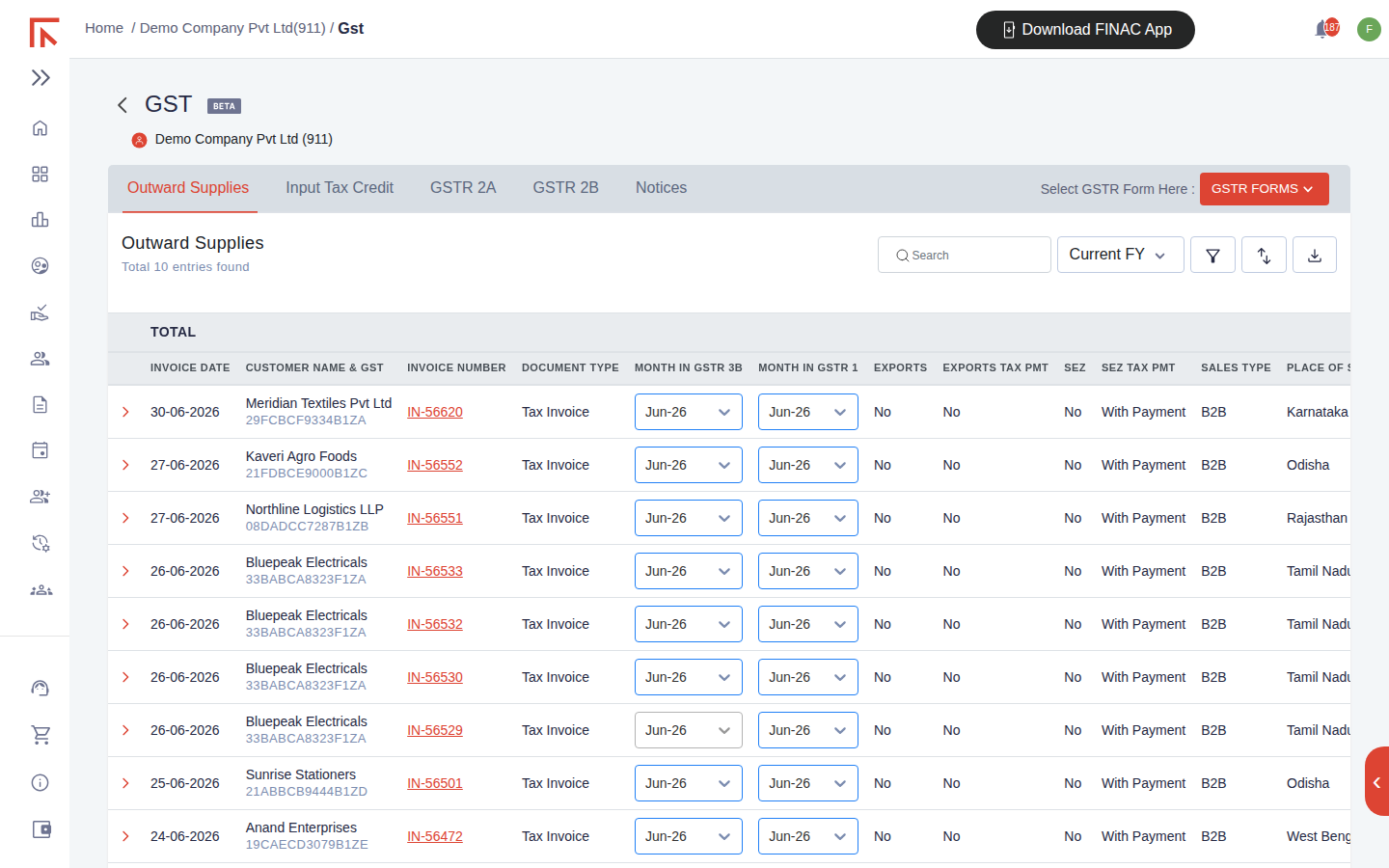
| Column | What to check |
|---|---|
| Customer Name & GST | The customer's legal name and GSTIN. A registered customer is reported in table 4A (B2B); an unregistered one goes to table 7 (B2CS) or 5A (B2CL) depending on value and state. |
| Month in GSTR 1 / Month in GSTR 3B | The return period each invoice is reported in. Both default to the invoice month and can be changed from the dropdown, for example when an invoice is reported late. |
| Exports, SEZ, Exports Tax Pmt | Flags that route an invoice to tables 6A (exports) or 6B (SEZ), with or without payment of tax. |
| Sales Type | B2B, B2C or other classification used to place the invoice in the correct table. |
| Place of Supply | The state the supply is made to. Determines whether IGST or CGST and SGST applies. |
| Total IGST / SGST / CGST / Taxable / Invoice | The tax split and totals that roll up into the return. The TOTAL row at the top sums the visible list. |
Use the Current FY control to switch financial years, the search box to find one invoice, and the filter and export icons to narrow or download the list. Select an invoice number to open the invoice itself if a field needs correcting; the return picks up the change automatically.
Opening Form GSTR-1
- In the GST module, select the GSTR FORMS button at the top right.
- Choose GSTR - 1.
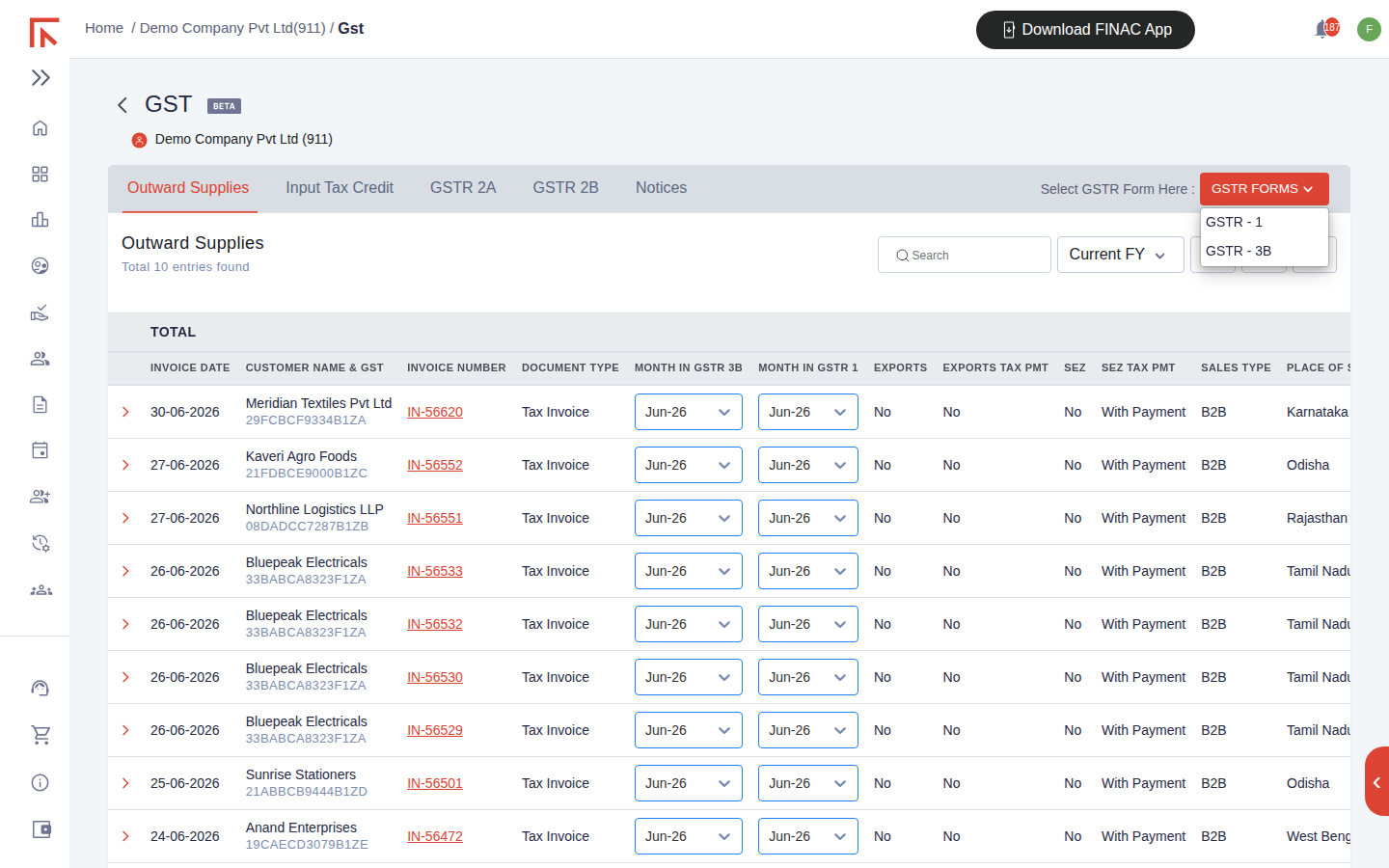
- Select the GST No. you are filing for, or select a Branch. Choose one or the other, not both.
- Confirm the Financial Year and pick the Month.
The return header
Once a GSTIN is selected, the header populates from the Business Address: GSTIN, legal name, trade name and PAN, followed by the signatory rows and the Filed by field, which records who filed the return.
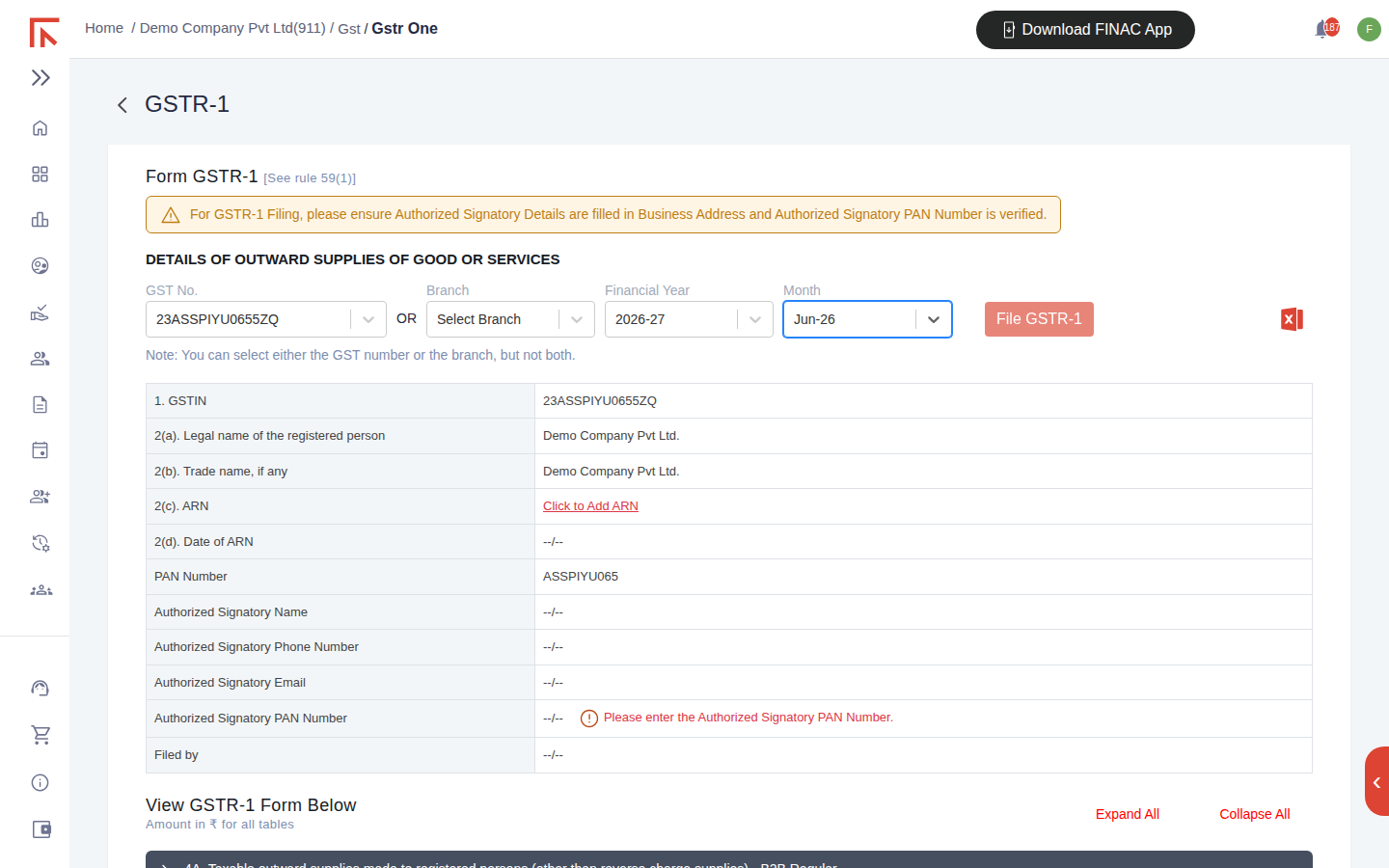
The 2(c). ARN row accepts the acknowledgement reference number issued by the GST portal after filing. Select Click to Add ARN to record it and keep the filing history complete.
The GSTR-1 tables
Below the header, the form lists every statutory table of GSTR-1 as a collapsible section. Use Expand All to open them at once, or select one heading to open just that table. Each table shows the number of records, document type, value and the integrated, central, state and cess tax amounts, with a View Source link back to the invoices that make up the figure.
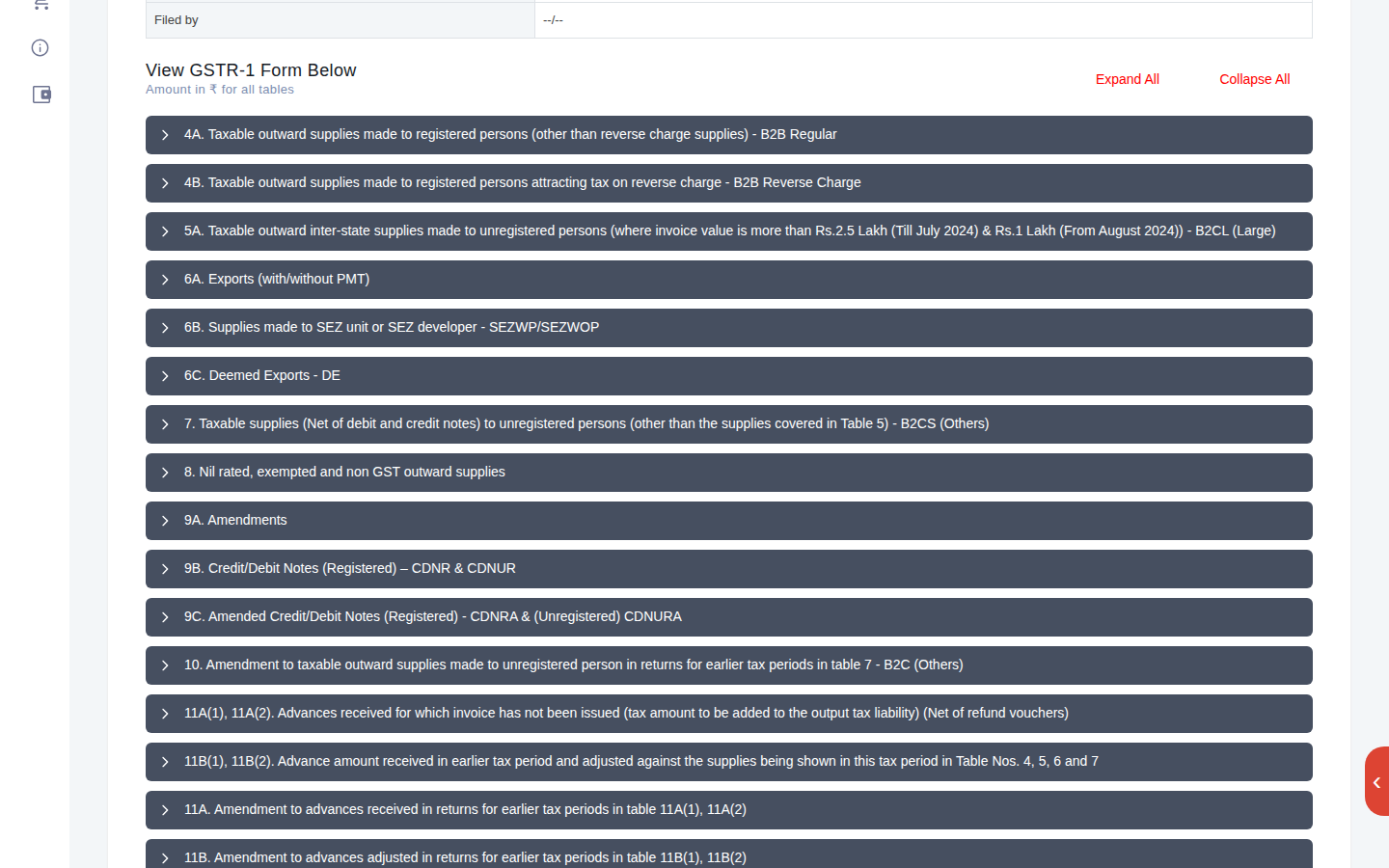
| Table | Contents |
|---|---|
| 4A | Taxable outward supplies to registered persons, B2B Regular. |
| 4B | B2B supplies attracting reverse charge. |
| 5A | Inter-state supplies to unregistered persons above the value limit, B2CL. |
| 6A, 6B, 6C | Exports, supplies to SEZ units or developers, and deemed exports. |
| 7 | Supplies to unregistered persons not covered in table 5, B2CS. |
| 8 | Nil rated, exempted and non-GST outward supplies. |
| 9A, 9B, 9C, 10 | Amendments and credit or debit notes for registered and unregistered recipients. |
| 11A, 11B | Advances received and advances adjusted. |
| 12, 13 | HSN-wise summary of outward supplies and documents issued. |
The Total Liability line under the tables sums the tax on outward supplies other than reverse charge for the period.
Approving and filing
- Review the tables against the Outward Supplies list. Where a figure looks wrong, use View Source to reach the invoice, correct it, and return to the form.
- Under Approval Details, select Approve GSTR-1 Form. Use Add Comment to leave a note for the reviewer or the client.
- Select File GSTR-1. Finac submits the return for the selected GSTIN and period.
- Once the GST portal issues the ARN, record it in row 2(c).
GSTR-3B for the same period is filed after GSTR-1, from the same dropdown. The GSTR-3B screen carries a reminder that it relates to the previous month's GSTR-1.
Frequently asked questions
An invoice from last month was recorded late. How do I report it now?
On the Outward Supplies tab, change the invoice's Month in GSTR 1 to the current period. The form moves it to the current return.
The tables show zero although there are invoices for the month.
Check that the invoices belong to the GSTIN or branch selected at the top of the form, that they carry a customer GSTIN where the customer is registered, and that each is tagged to the selected month on the Outward Supplies tab.
Can I file for more than one GSTIN?
Yes. Each registered address in Business Address has its own GSTIN. Select each GSTIN in turn and file separately.