Bank Statement Reconciliation: From Upload to Posted Entries
Uploading a bank statement is the quickest way to bring a month's transactions into the books. Finac reads each line of the statement, suggests the customer, supplier or ledger it belongs to from the narration, matches receipts and payments to open invoices, and posts the rest as entries under Other Entries. This article follows a statement from upload to posted entries and explains the summary figures on the way.
On this page
- Opening Upload Bank Statement
- Uploading a statement
- The uploaded statements list
- Reviewing transactions
- Posting and matching
- Where the entries go
- Frequently asked questions
Opening Upload Bank Statement
- Open the client and select Invoicing Advanced.
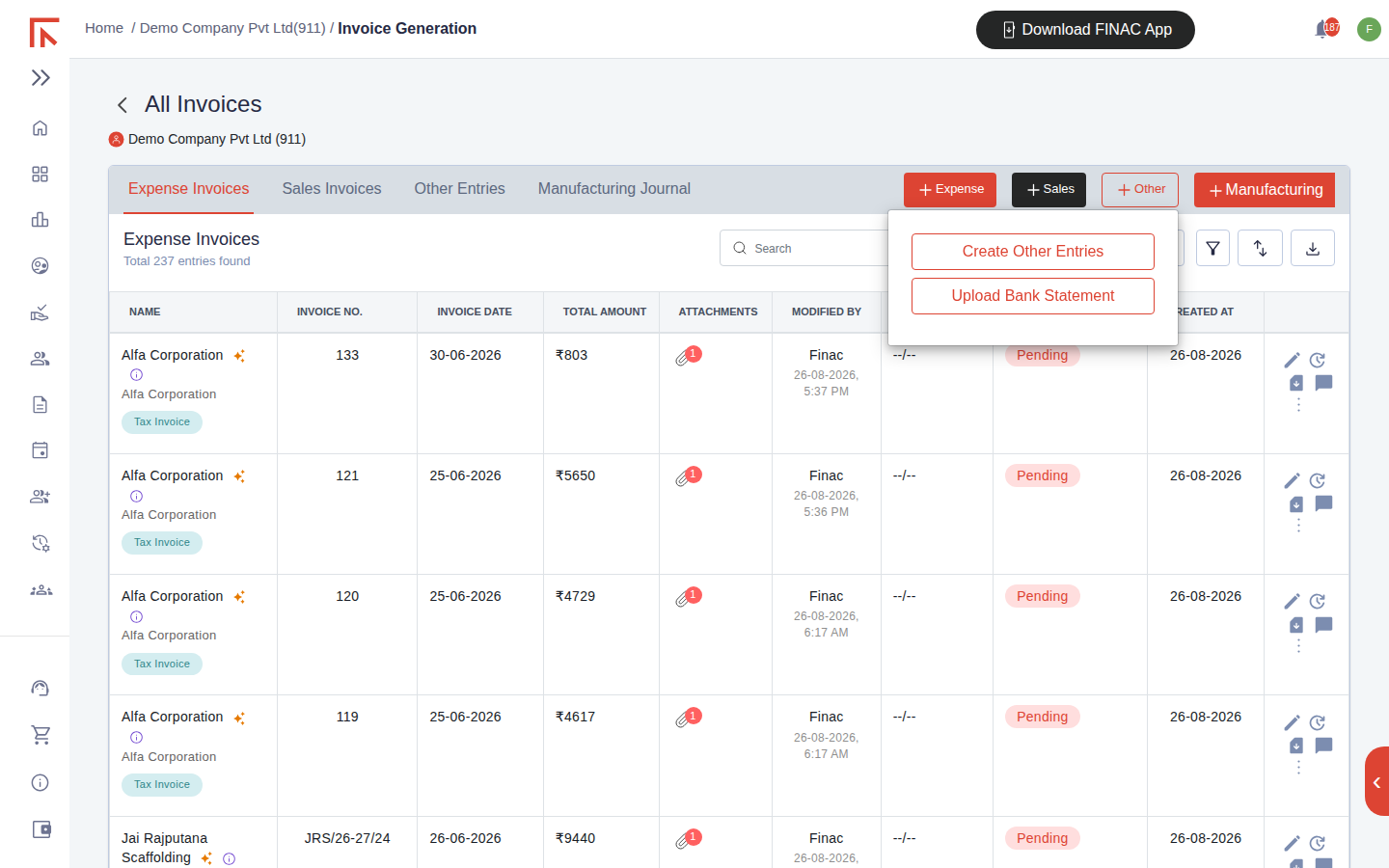
- Select + Other at the top right, then Upload Bank Statement.
Uploading a statement
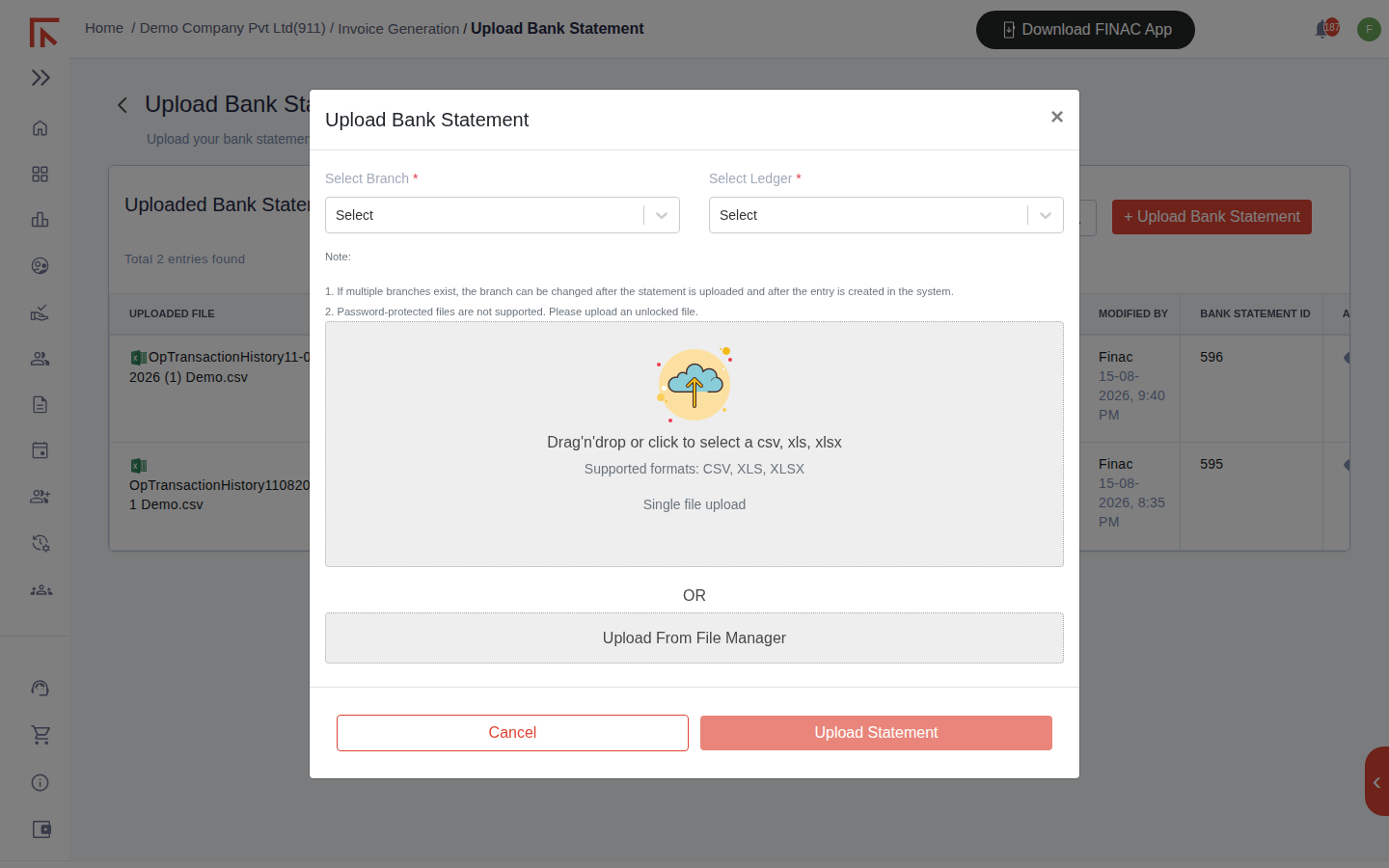
- Select + Upload Bank Statement.
- Choose the Branch the account belongs to and the Ledger, which is the bank account as set up in Accounts Manager.
- Drag the statement file onto the panel or click to select it. CSV, XLS and XLSX are accepted, one file at a time, and the file must not be password-protected. Alternatively select Upload From File Manager to use a statement already stored for the client.
- Select Upload Statement.
Most banks offer a CSV or Excel download of the account statement from net banking. Use that rather than a PDF, and download the full period you intend to reconcile so no transactions fall between two uploads.
The uploaded statements list
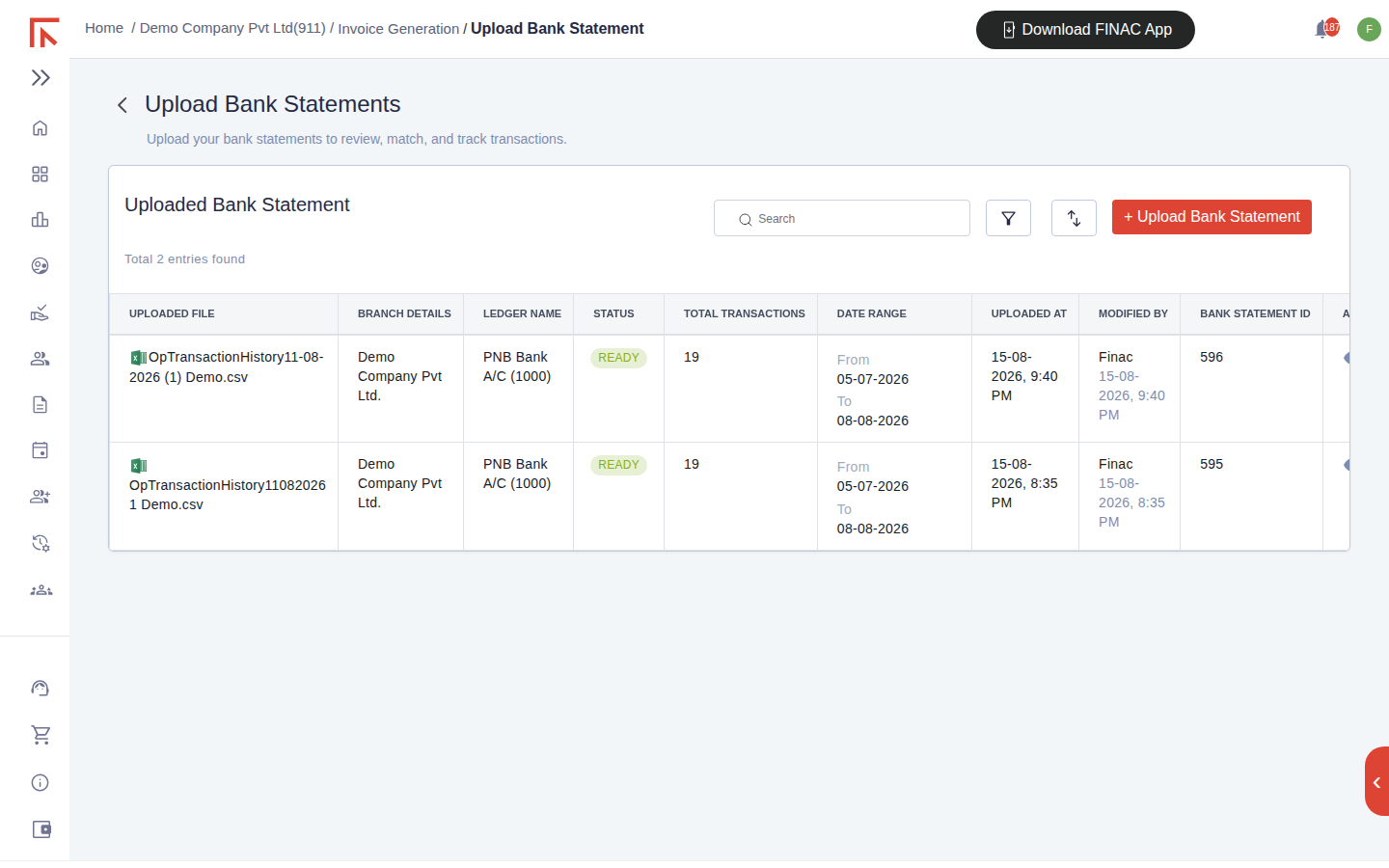
Each uploaded statement is a row on the Upload Bank Statements screen, showing the file, branch, ledger, processing status (READY once read), the number of transactions, the date range covered, when and by whom it was uploaded, and the statement ID. The action icon at the right opens the statement's transactions.
Reviewing transactions
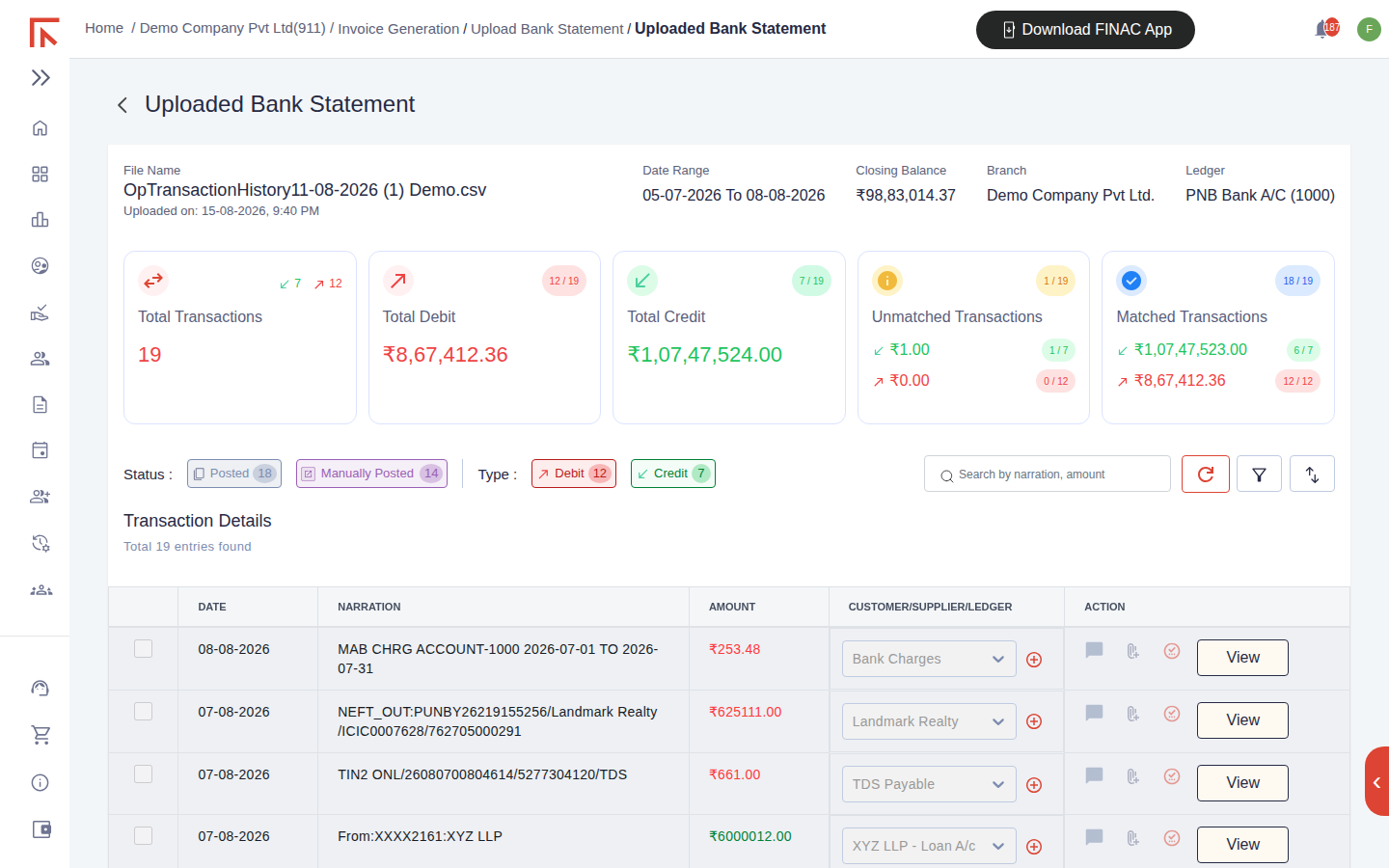
The statement view opens with a header repeating the file, date range, closing balance, branch and ledger, followed by five summary cards and the transaction list.
| Card | Meaning |
|---|---|
| Total Transactions | Lines on the statement, split into credits (receipts) and debits (payments). |
| Total Debit / Total Credit | The value of payments and receipts, each with how many of the lines are posted. |
| Unmatched Transactions | Lines Finac could not assign to a ledger with confidence. These need a decision. |
| Matched Transactions | Lines assigned to a ledger and posted, by value and count. |
Below the cards, the Status chips (Posted, Manually Posted) and Type chips (Debit, Credit) filter the list, and the search box finds a line by narration or amount. Each transaction row shows the date, the bank's narration, the amount coloured red for a debit and green for a credit, and the Customer/Supplier/Ledger it has been, or will be, posted to. A bank charge is suggested as Bank Charges; a TDS challan payment as TDS Payable; a NEFT to a named party as that party's ledger.
Posting and matching
- For a posted line, View opens the resulting entry.
- For an unmatched line, choose the ledger in the Customer/Supplier/Ledger dropdown. Use the plus icon beside it to create a customer, supplier or ledger that does not exist yet.
- Select Post. Where the party has an open invoice for the amount, the payment is allocated to it and the invoice's payment status changes to Paid or Partial Paid; otherwise the transaction is posted to the party's ledger for allocation later.
- Use the comment and attachment icons on a row to record why a line was coded a particular way or to attach the supporting document.
The refresh icon above the list re-runs the matching, which picks up invoices recorded after the statement was uploaded. Lines that cannot be identified should be left unposted with a comment rather than posted to a guessed ledger; a suspense entry is easier to clear than a wrong posting is to find.
Where the entries go
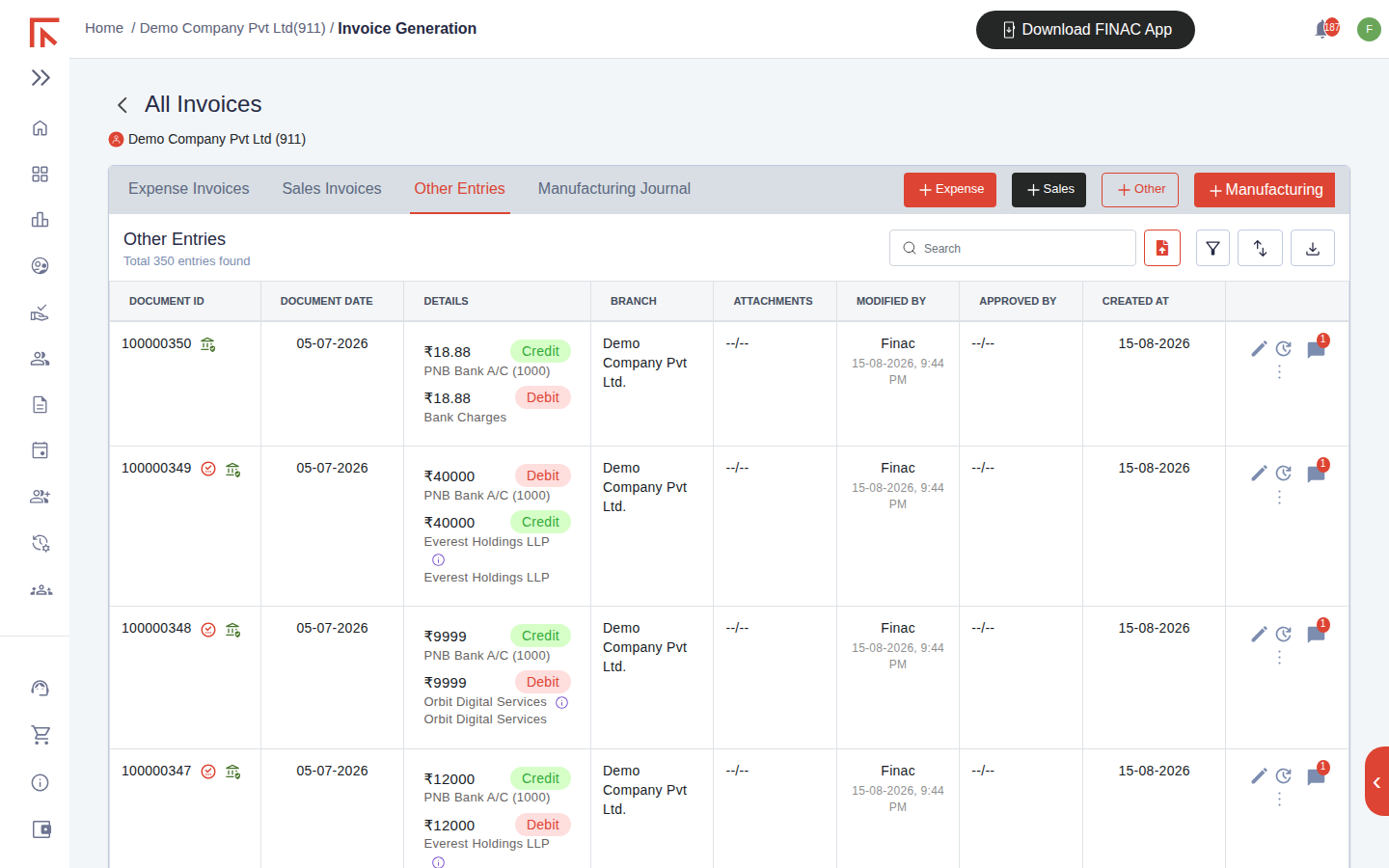
Each posted line becomes an entry on the Other Entries tab of Invoicing Advanced, showing the bank account on one side and the party or expense ledger on the other, with the document ID and who posted it. The bank ledger's balance in the trial balance moves with each posting, and the closing balance shown in the statement header is the figure to agree it to.
Frequently asked questions
I uploaded the same statement twice. Are the entries doubled?
No. Finac recognises transactions already present from an earlier upload and marks them as duplicates rather than posting them again. Both uploads remain in the list; use the later one for review.
The bank is not in the Ledger dropdown.
Add the account under Settings > Accounts Manager with the account type Cash & Cash Equivalents, then upload again.
Can I upload a PDF statement?
The dialog accepts CSV, XLS and XLSX. Download the statement in one of those formats from net banking, or send the PDF to the Finac team through Support and it will be converted and uploaded for you.