Client Settings Overview: Master Data for a Client
Settings on the Client Dashboard holds the master data for one business: where it is registered, whom it trades with, which accounts, stock items and departments it uses, and how its invoices are laid out. Most of it is set up once when a client is onboarded and then maintained as the business changes. This page introduces each card and points to the detailed guide where one exists.
On this page
- Opening Client Settings
- The nine cards
- General Setting
- Suggested setup order for a new client
- Frequently asked questions
Opening Client Settings
- Open the client from the Clients List.
- Select the Settings tile on the Client Dashboard.
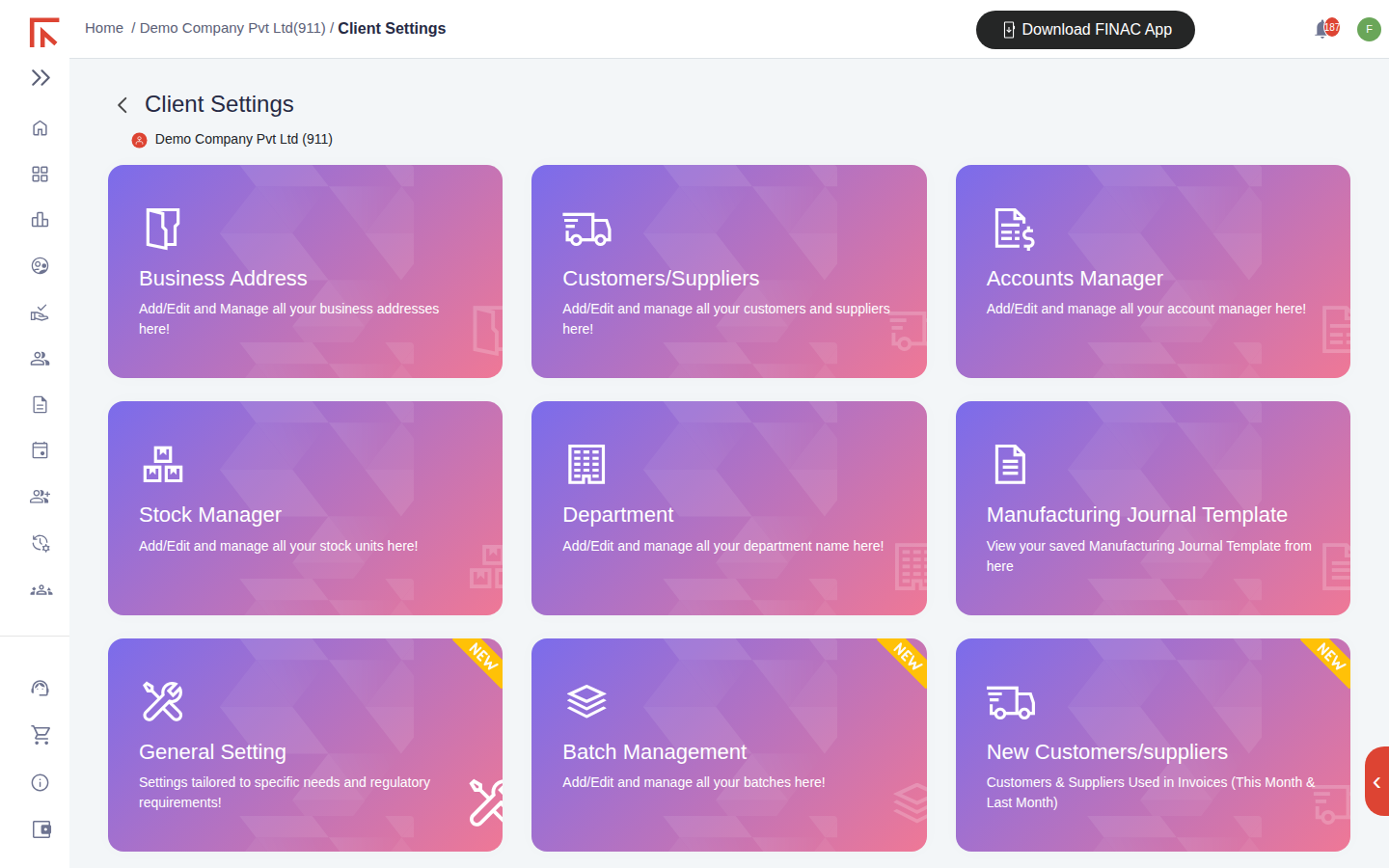
The nine cards
| Card | What it holds | When you use it |
|---|---|---|
| Business Address | The registered office and every branch, each with GSTIN, PAN, signatory, logo and bank details. | On onboarding, when a new state registration is obtained, or when bank or signatory details change. See Client Settings: Business Addresses and GST Branches. |
| Customers/Suppliers | The party master: legal and trade names, GSTIN, PAN, addresses, bank details, default ledgers and TDS or TCS treatment. | Whenever a new party is confirmed or a default needs correcting. See Client Settings: Customer and Supplier Master. |
| Accounts Manager | The chart of accounts: each ledger with its account number, account type (Cash & Cash Equivalents, Assets, Liabilities, Income, Expense) and parent account. Bank accounts are created here. | When a new bank account is opened or an expense or income head is needed that does not yet exist. |
| Stock Manager | Stock groups, stock items and units of measurement. | For clients that hold inventory. Items and units are picked on invoice lines and drive the stock reports. |
| Department | Departments the business reports by. | Where expenses or assets are tracked by department; the department appears on invoices and in the Fixed Asset Register. |
| Manufacturing Journal Template | Saved templates for manufacturing journals. | For clients that convert raw material into finished goods, so a recurring production entry can be reused. |
| General Setting | Invoice templates, HSN checks, automatic numbering, miscellaneous settings and document type names. | On onboarding and when the invoice layout or numbering rules change (next section). |
| Batch Management | Batches for stock tracked by lot or expiry. | For inventory clients that need batch-wise stock reports. |
| New Customers/suppliers | Parties first seen in invoices during the current and previous month. | A monthly review list, so automatically created parties are checked and given defaults. |
General Setting
General Setting collects the client-level preferences that shape invoices, arranged in tabs.
| Tab | Purpose |
|---|---|
| Sales Templates | The PDF layouts available for sales invoices, for example a static-header layout, an export invoice, a batch summary or a GST summary without SKU detail. Tick a template to assign it to the client and use Mark This Default for the one to apply unless another is chosen on the invoice. Select Submit to save. |
| Expense Templates | The equivalent layouts for expense documents. |
| HSN Checks | Validation of HSN or SAC codes on invoice lines. |
| Auto Unique Number | Automatic numbering for documents so each invoice receives the next number in sequence. |
| Miscellaneous Settings | Other client-level options. |
| Document Type Name | An alternate name (alias) for each document type, shown on invoicing screens and printed as the heading on the PDF, for example "Bill of Supply" in place of the system name. |
Suggested setup order for a new client
- Business Address: add the registered office with GSTIN, PAN and signatory, mark it default, add branches.
- Accounts Manager: add each bank account as a Cash & Cash Equivalents ledger, and any expense or income heads the business needs beyond the standard set.
- General Setting: choose the invoice template, switch on automatic numbering, and set document type names.
- Stock Manager, Batch Management and Department if the business uses them.
- Customers/Suppliers: import the party list with Bulk Upload, or let records build up as bills and invoices are processed and review them under New Customers/suppliers.
Frequently asked questions
Do these settings apply to all my businesses?
No. Settings are per client. Each business on the Clients List has its own addresses, parties, accounts and templates.
Who can change settings?
Users with access to the client. Changes are recorded with the user's name and time on the relevant list, for example the Added/Modified By column in Accounts Manager.
I added a bank account but it does not appear when uploading a statement.
Check that the ledger's Account Type in Accounts Manager is Cash & Cash Equivalents. Only ledgers of that type are offered as the bank for a statement upload.