Client Settings: Customer and Supplier Master
Every party a business buys from or sells to is a record in the Customers/Suppliers list. The record holds the party's legal and trade name, PAN and GSTIN, addresses, bank details, and the default ledgers and TDS or TCS treatment to apply when an invoice from or to that party is recorded. When Finac processes an uploaded bill and recognises the supplier, it is this record that is used; when a new party appears for the first time, a record is created and listed under New Customers/suppliers for review. This article explains the list, the profile form and the settings that drive automatic posting.
On this page
- Opening the Customers/Suppliers list
- Reading the list
- Adding a customer or supplier
- Default ledgers, TDS and TCS
- Reviewing new parties
- Frequently asked questions
Opening the Customers/Suppliers list
- Open the client and select Settings on the Client Dashboard.
- Select Customers/Suppliers.
Reading the list
The list shows every party on file with its ledger number, legal and trade names, first address line, email, mobile, parent ledger, who added or last modified it, country, whether it is a customer or supplier, and the supplier type (Individual or Company). The pencil icon on each row opens the profile for editing and the download icon exports the record. Bulk Upload imports parties from a spreadsheet, and the search box, filter and export icons work on the list as a whole.
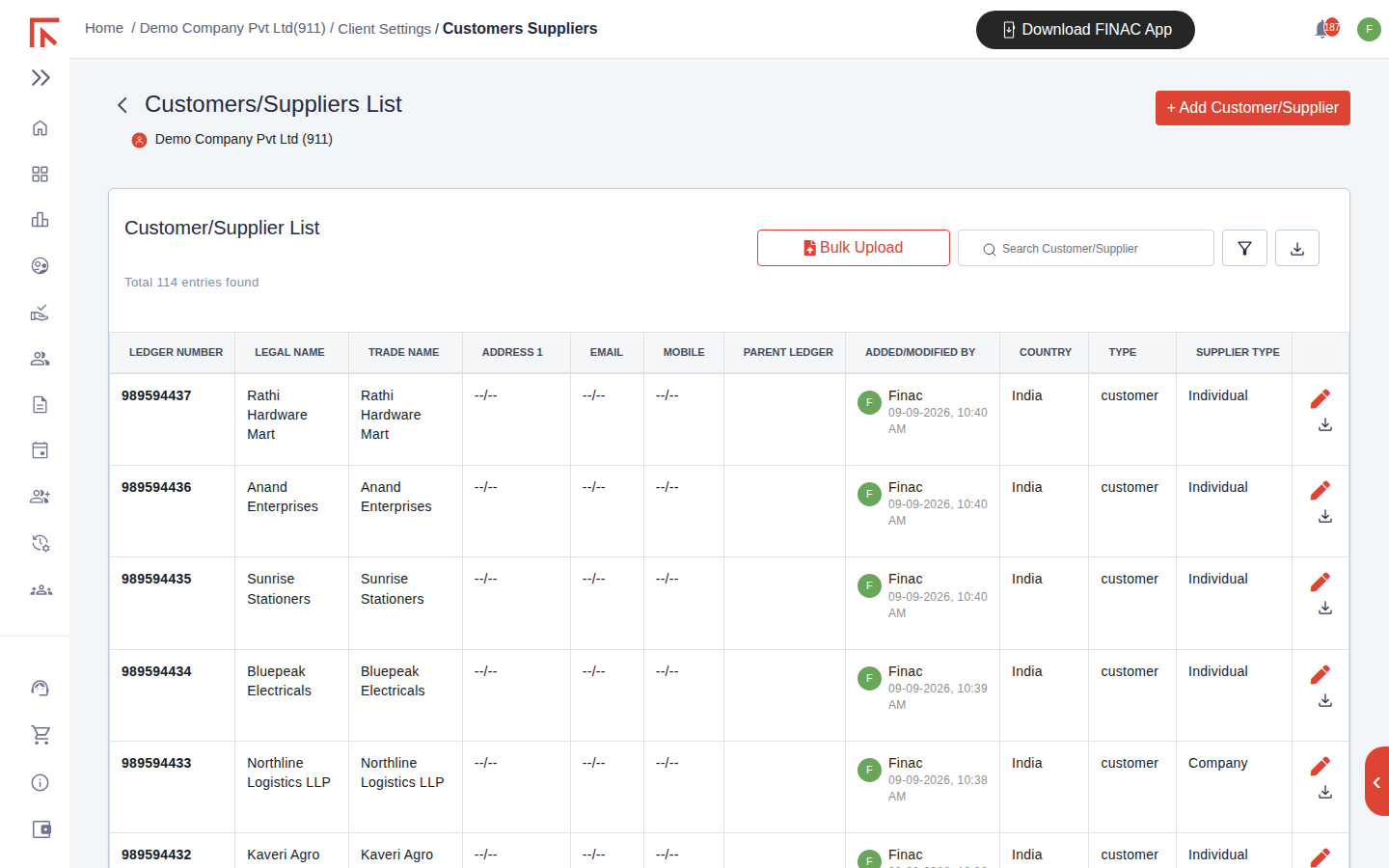
| Column | Meaning |
|---|---|
| Ledger Number | The account number of the party's ledger in the chart of accounts. Assigned on creation. |
| Legal Name / Trade Name | The name on the GST or PAN registration, and the working name. The legal name prints on tax invoices. |
| Parent Ledger | Filled when the party is set up as a sub-ledger under another account. |
| Added/Modified By | The user, or Finac itself for records created during automatic processing, and the timestamp. |
| Type | customer or supplier. A party that is both is recorded twice, once under each type. |
| Supplier Type | Individual or Company. Drives the TDS section and rate applied to payments. |
Adding a customer or supplier
- Select + Add Customer/Supplier.
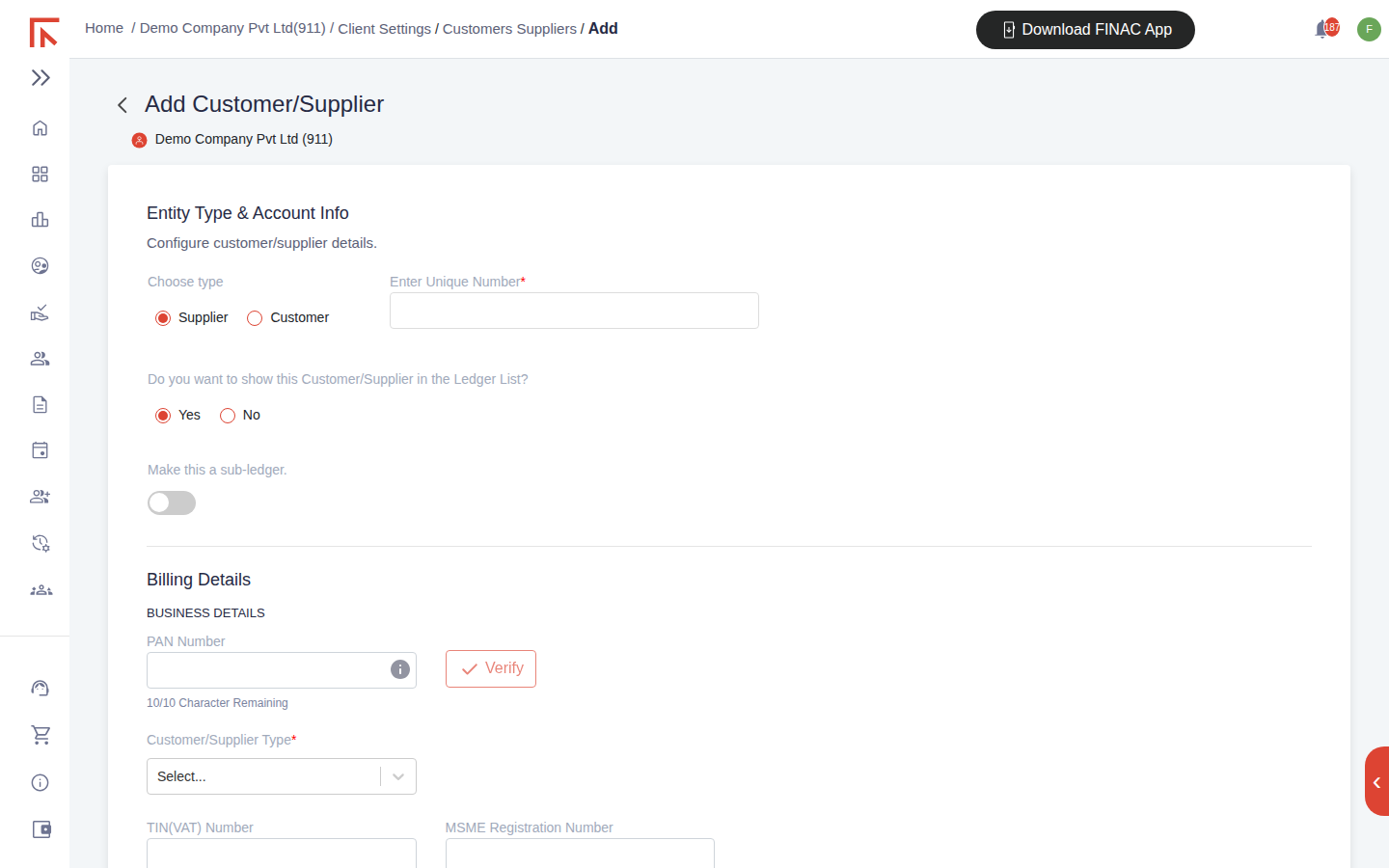
- Under Entity Type & Account Info, choose Supplier or Customer, enter a Unique Number, and choose whether to show the party in the ledger list. Turn on Make this a sub-ledger to place it under a parent account.
- Under Billing Details, enter the PAN Number and select Verify, choose the Customer/Supplier Type, then enter the GST Number and select Verify and Get. The legal name, trade name, registration type and date, constitution of business and company status fill from the registration.
- Complete the Contact Details: address lines, pin code, country, mobile, telephone, email and website.
- Add Payment Details where the party will be paid by bank transfer: IFSC code (with Verify), account number, beneficiary name, bank name, branch address and UPI ID.
- Set the defaults under Settings (next section).
- Optionally add one or more Shipping Address Details for a customer with delivery locations different from the billing address.
- Select Add Details.
Default ledgers, TDS and TCS
The Settings block at the foot of the profile is what makes automatic posting accurate for a party. Each field is a default that Finac applies when it records an invoice from or to the party; it can still be changed on an individual invoice.
| Field | Effect |
|---|---|
| Nature of Expense | The expense ledger debited for bills from this supplier, for example Purchase Account or Professional Fees. |
| Nature of Income | The income ledger credited for invoices to this customer. |
| Over Due Email Status | Whether reminder emails are sent to the customer for overdue invoices. |
| TDS of Expense / TDS of Income | The TDS section applied to payments to the supplier, or expected on receipts from the customer. Feeds the TDS/TCS module. |
| TCS of Expense / TCS of Income | The TCS treatment where tax is collected at source on sales or purchases. |
Reviewing new parties
Parties created during automatic processing in the current and previous month are listed under Settings > New Customers/suppliers, with separate Customers and Suppliers tabs and a First Seen date. Open each new party from the Customers/Suppliers list, confirm the GSTIN and legal name, and set the default ledgers so that later invoices post without review.
Frequently asked questions
A supplier's bill was recorded under a slightly different name. Do I now have two records?
Check the Customers/Suppliers list for both names. Keep the record with the verified GSTIN, move any invoices on the other record to it, and delete the duplicate.
Why does the same company appear as both a customer and a supplier?
Finac keeps customer and supplier ledgers separate so receivables and payables are reported separately. A party you both buy from and sell to has one record of each type.
Can I import our existing party list?
Yes. Use Bulk Upload on the list screen and follow the template it provides.