Compliance Calendar: Due Dates and Jobs by Month
The Compliance Calendar lays the jobs recorded for a client over a month view, so that GST returns, TDS payments, income-tax filings and audit work can be seen by the date they fall due rather than as a list. Each job is colour-coded by state, and selecting one opens its summary without leaving the calendar. This article explains how to open the calendar, read the colour key, move between months and use the job summary. The jobs themselves are created and progressed in the Job Tracker, covered in Job Tracker and Open Items.
On this page
- Opening the calendar
- Reading the month view
- The job summary
- Using the calendar in practice
- Frequently asked questions
Opening the calendar
- Select the calendar icon in the left sidebar. The Compliance Calendar is available from any screen, not only from inside a client.
- Under Please select client to see jobs in calendar, start typing the client's name or code and select it. Jobs for that client appear on their due dates.
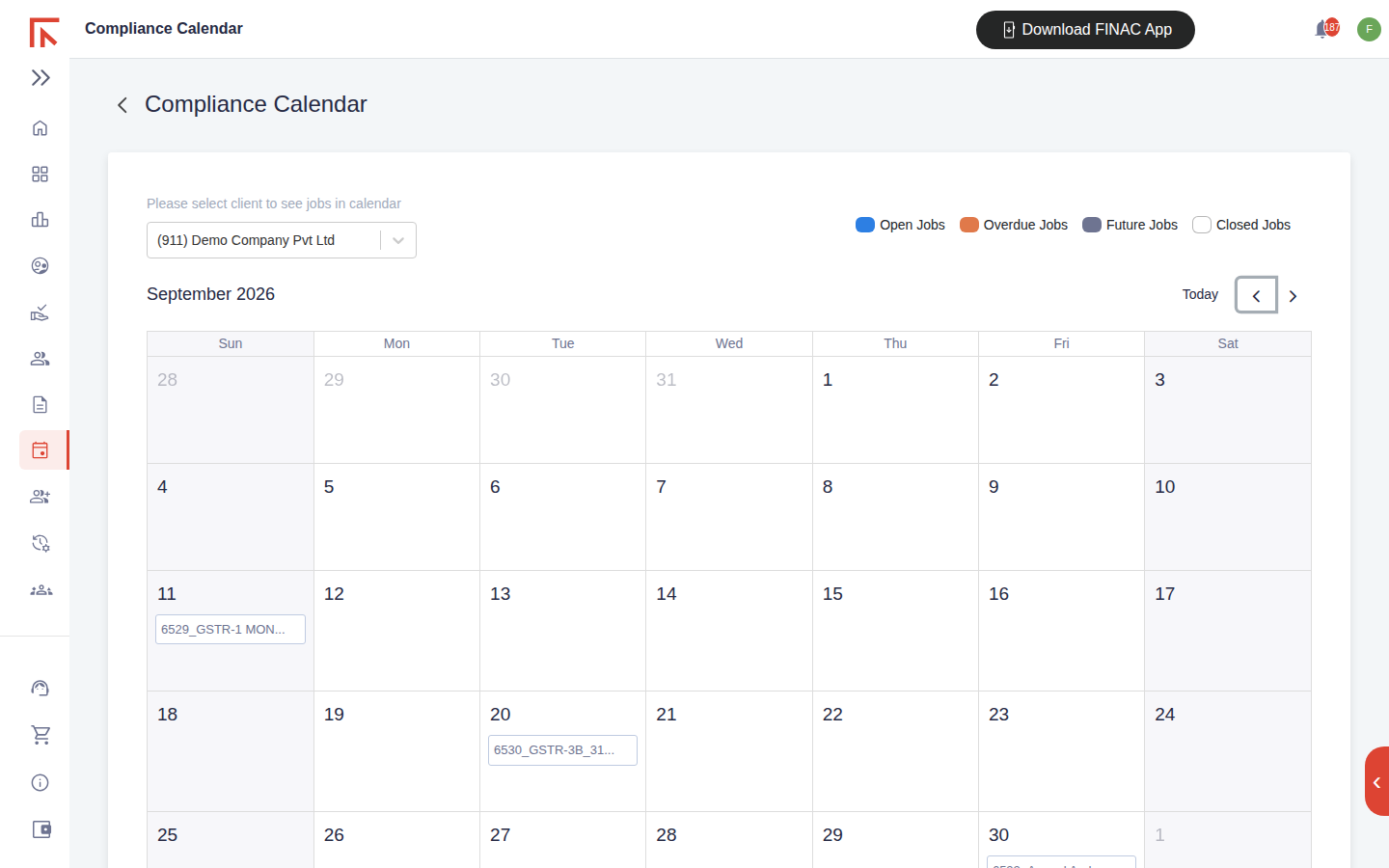
The calendar opens on the current month. Use the ‹ and › arrows to move a month at a time and Today to return to the current month.
Reading the month view
A job appears as a chip on its target end date, labelled with its job ID and type, for example 6529_GSTR-1 MONTHLY. The chip colour tells you its state at a glance.
| Colour | State | Meaning |
|---|---|---|
| Blue | Open Jobs | Due in the current month and not yet completed. |
| Orange | Overdue Jobs | Past the target end date and still not completed. These need attention first. |
| Grey | Future Jobs | Scheduled for a later date; nothing is due yet. |
| White | Closed Jobs | Completed. They stay on the calendar so the month's record is complete. |
Where a client has several jobs on the same day, each shows as its own chip, so a month-end with GSTR-1, GSTR-3B and a TDS payment falling together is visible as a cluster rather than three separate list entries.
The job summary
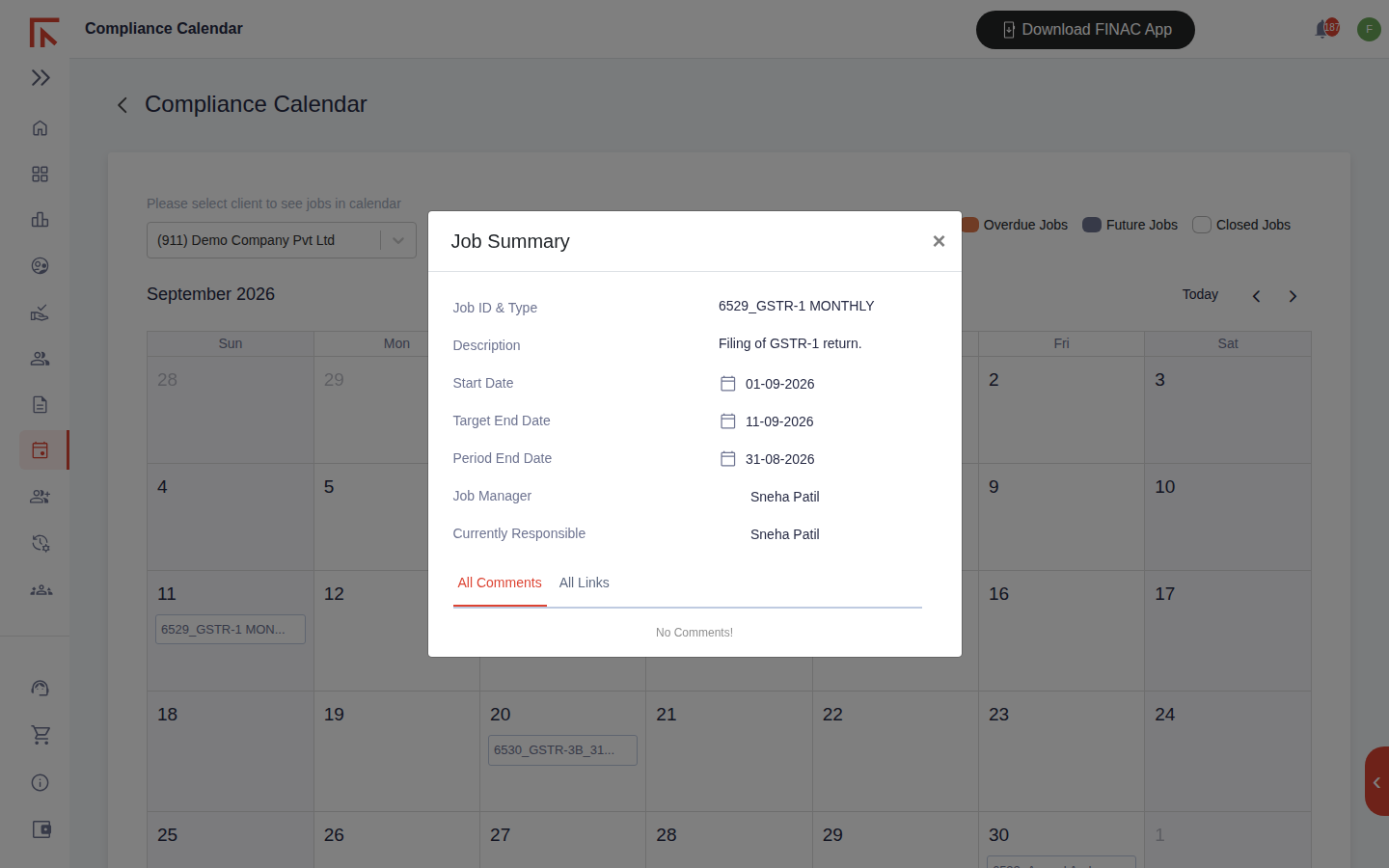
Select a chip to open Job Summary.
| Field | Meaning |
|---|---|
| Job ID & Type | The job's number and the job type it was created from, such as GSTR-1 Monthly or Annual Audit. |
| Description | The task in one line, as set on the job type. |
| Start Date / Target End Date | When work is expected to begin and the date by which it should be finished. The chip sits on the target end date. |
| Period End Date | The last day of the period the job relates to, for example 31 August for the August GSTR-1. |
| Job Manager / Currently Responsible | Who owns the job and who holds the next action. These are the people to ask about progress. |
| All Comments / All Links | The comment thread on the job and any links attached to it, for example the filed return or acknowledgement. |
Close the summary with the × to return to the calendar; the month and client selection are kept.
Using the calendar in practice
- Start of month. Open the current month for each active client and read the blue chips: these are the deadlines to plan around. Anything orange carried over from last month goes to the top of the list.
- Client conversations. When a client asks what is due, the calendar answers in one screen: the month view shows the dates, and the summary shows who is handling each item and what has been said about it.
- Month end. A month showing only white chips is a month closed cleanly. A blue chip on the last working day is a job still open on its due date.
Frequently asked questions
The calendar is empty for my client.
No jobs have been created for the client in the Job Tracker for the month shown. Check adjacent months with the arrows; if the client has no jobs at all, set up its recurring compliance jobs in the Job Tracker and they will appear here.
Can I see all clients at once?
The calendar shows one client at a time. For a view across clients, use the Job Tracker list, which is where jobs are created and progressed.
Can I change a due date or mark a job complete from the calendar?
The calendar is a view. Open the job in the Job Tracker to edit its dates, reassign it or update its status; the calendar picks up the change the next time it is loaded.
Why does a job show on the target end date rather than the statutory due date?
The target end date is the internal deadline set on the job, which is usually a day or two before the statutory date to leave room for review. Where the two are the same, the chip falls on the statutory date.