Creating a Sales Invoice in Finac
Sales invoices issued to customers are created from the Add Sales Entry screen in Invoicing Advanced. The invoice carries the client's own GSTIN from the selected branch, the customer's details from the Customers/Suppliers list, the line items with HSN or SAC codes and GST, and the payment details to be printed on the PDF. Once submitted, the invoice can be emailed to the customer directly, and it appears in the Outward Supplies tab of the GST module for GSTR-1. This article covers the screen and the choices on it.
On this page
- Opening Add Sales Entry
- Primary Details
- Item Details
- Payment, approval and sending
- The Sales Invoices list
- Frequently asked questions
Opening Add Sales Entry
- Open the client and select Invoicing Advanced.
- Select the + Sales button at the top right.
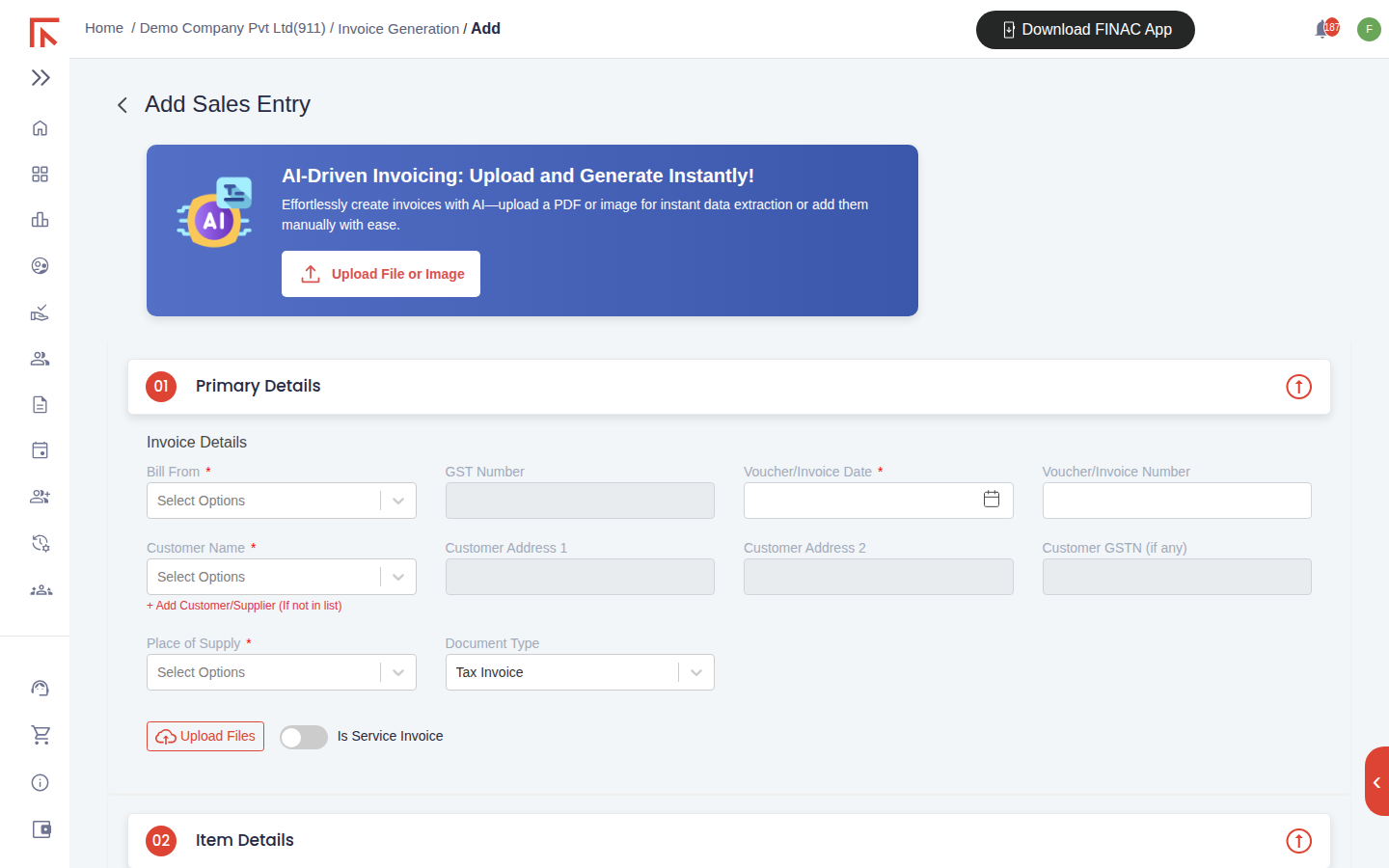
The screen opens with the same upload panel as an expense entry. It is useful when a sales invoice was raised outside Finac and only needs recording: upload the PDF and the fields fill from it. For a new invoice, work down the sections below.
Primary Details
| Field | What to enter |
|---|---|
| Bill From | The client's business address issuing the invoice. The address's GST Number fills alongside and prints on the invoice. |
| Voucher/Invoice Date | The invoice date. Determines the GSTR-1 period. |
| Voucher/Invoice Number | The invoice number. Where Auto Unique Number is switched on in General Setting, the next number in sequence is assigned; otherwise type it. |
| Customer Name | Pick from the Customers/Suppliers list, or create the customer with + Add Customer/Supplier. Address and GSTIN fill from the record. |
| Customer GSTN (if any) | Required for a B2B invoice so the customer can claim credit and the supply is reported in GSTR-1 table 4A. |
| Place of Supply | The customer's state for goods, or the place of service. Decides IGST against CGST and SGST. Set it before adding items. |
| Document Type | Tax Invoice by default; bill of supply, export invoice, credit or debit note are available. The name printed on the PDF follows the alias set in General Setting. |
| Is Service Invoice | Turn on for services, so SAC codes apply and quantity fields are optional. |
| Upload Files | Attach a purchase order, delivery challan or other supporting document. |
Item Details
Select Add New Record for each line. The dialog asks for the Nature of Income (the income ledger to credit, defaulting from the customer record), the description, the stock item or SKU, HSN or SAC code, unit, rate, quantity, discount, taxable value and GST percentage. The IGST or CGST and SGST amounts calculate from the percentage and the place of supply. Select Save and Add to continue with the next line.
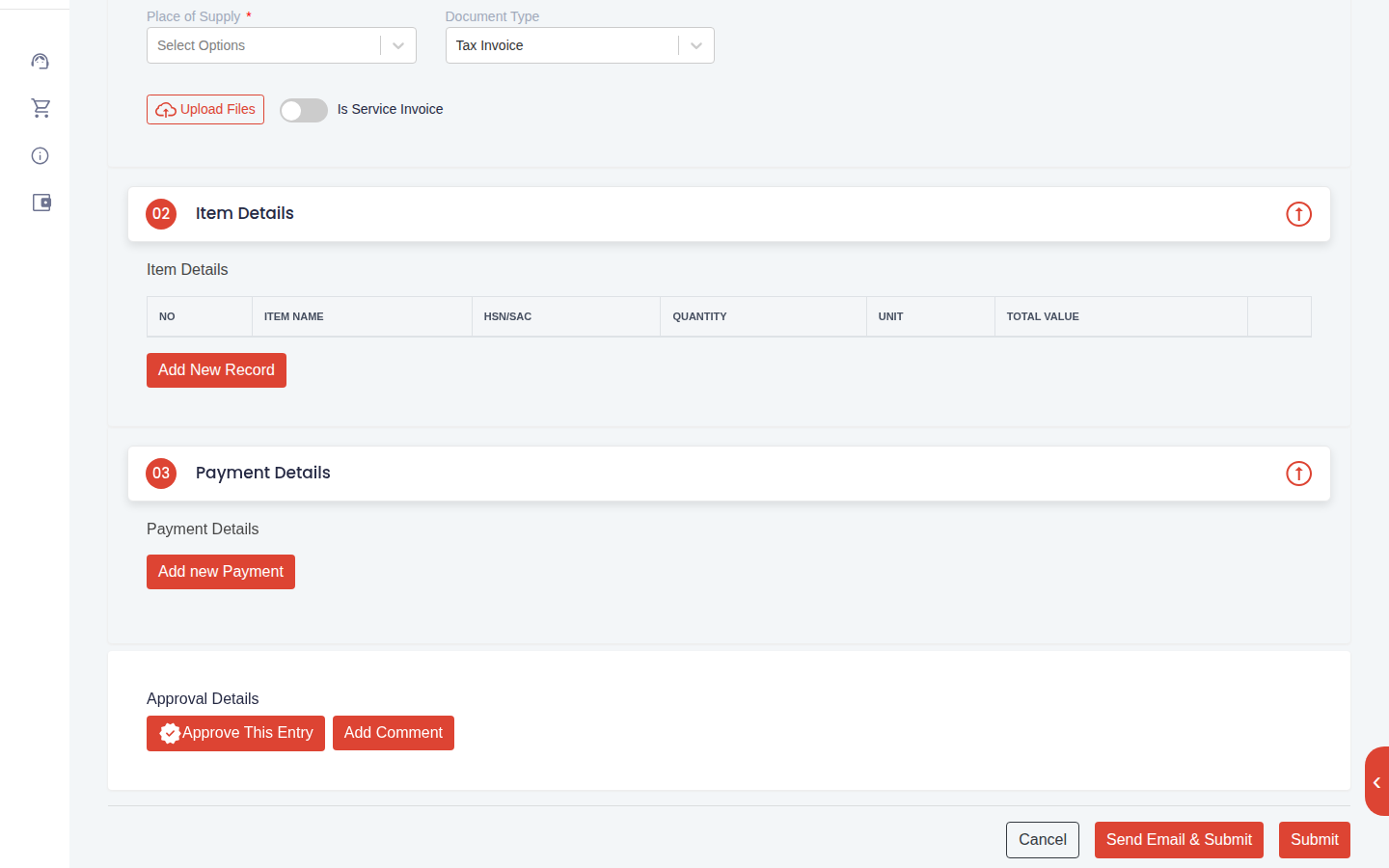
Below the table, the Invoice value box totals the lines. If the customer will deduct TDS or you collect TCS, select the option and the section so the receivable is recorded net.
Payment, approval and sending
Under Payment Details, record an advance already received with Add new Payment: amount, mode, date and the bank narration. Otherwise leave it empty; the receipt is matched when the customer's payment appears in the uploaded bank statement.
Under Approval Details, Approve This Entry signs the invoice off and Add Comment attaches a note. Two submit options are offered:
- Submit saves the invoice and generates the PDF in the template chosen under General Setting.
- Send Email & Submit saves it and emails the PDF to the customer's address on file in one step.
The Sales Invoices list
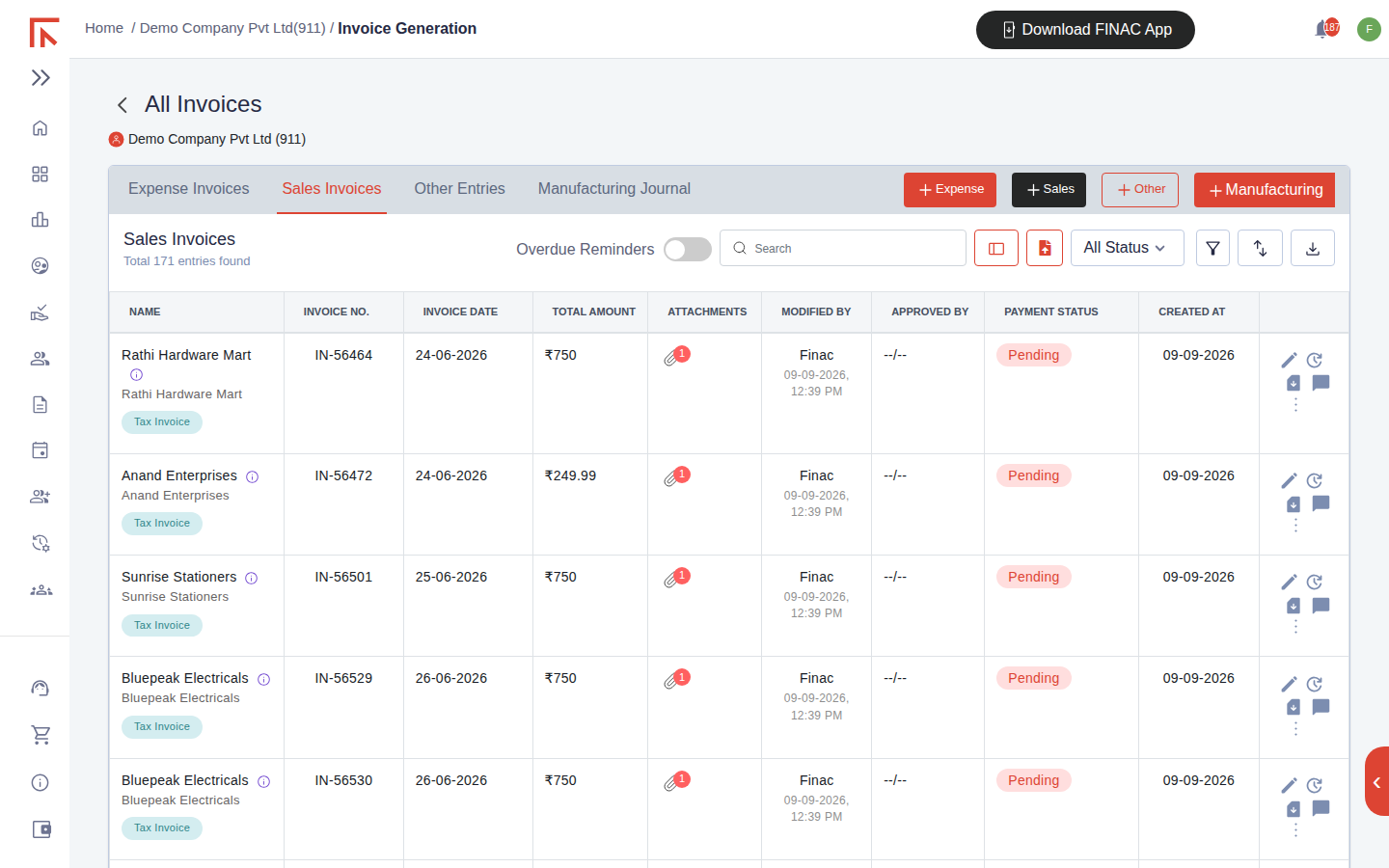
Submitted invoices appear on the Sales Invoices tab with the customer, number, date, amount, attachment count, who last modified it, approver and payment status. The download icon on a row produces the PDF again, and the Overdue Reminders control sends reminders for invoices past their due date to customers with reminders switched on in their record.
Frequently asked questions
Which invoice layout will the PDF use?
The template marked default under Settings > General Setting > Sales Templates. Several layouts can be enabled for a client and chosen per invoice.
How does the invoice reach GSTR-1?
Automatically. It is listed on the GST module's Outward Supplies tab, tagged to its invoice month, and rolls into the GSTR-1 tables for that GSTIN when the form is opened.
Can I raise an e-way bill from Finac?
The View E-Way Bill action on the invoice row opens the e-way bill for the invoice where one has been generated. See the article on editing and duplicating invoices.