Editing, Duplicating and E-Way Bill on an Invoice
Every row on the Expense Invoices and Sales Invoices tabs carries a set of actions on its right edge: edit, audit history, download, comments and a more-actions menu. This article covers the three that change or reuse the entry: opening it for editing, creating a copy with Duplicate Invoice, and opening the e-way bill with View E-Way Bill. The audit history and comments have their own article.
On this page
- The row actions
- Editing an entry
- Duplicating an invoice
- Viewing the e-way bill
- Frequently asked questions
The row actions
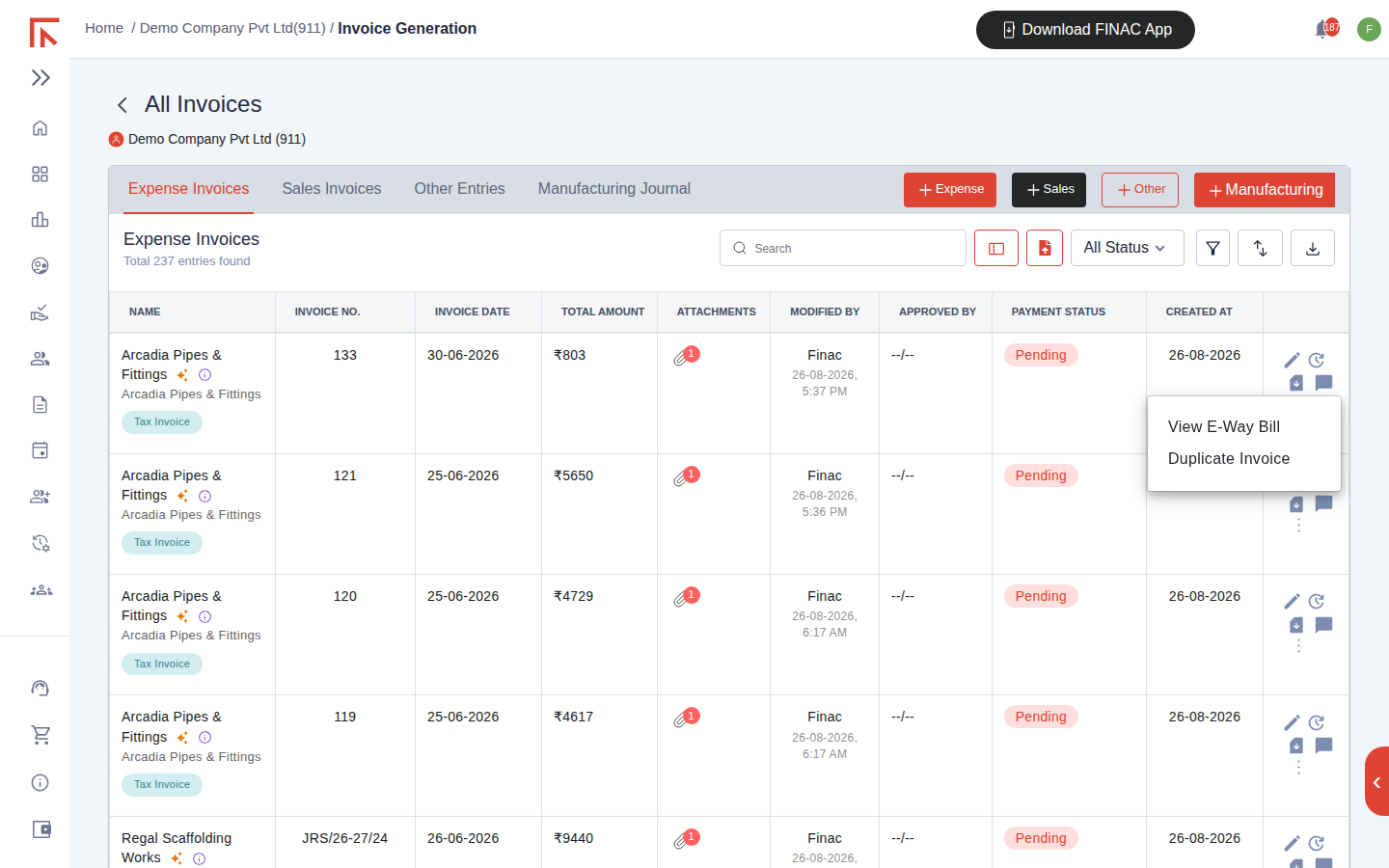
| Icon | Action |
|---|---|
| Pencil | Opens the entry for editing. |
| Clock | Opens the audit history of changes to the entry. |
| Download | Downloads the invoice PDF (sales) or the attached document (expense). |
| Comment bubble | Opens the comment thread on the entry. |
| Three dots | More actions: View E-Way Bill and Duplicate Invoice. |
Editing an entry
- Select the pencil icon on the row. The entry opens as Edit Expense Entry or Edit Sales Entry with every field populated.
- Change what is needed. Primary Details, item rows (pencil and bin icons on each row), payments and approval are all editable.
- Select Submit. The change is recorded in the audit history with your name and the time, and Modified By on the list updates.
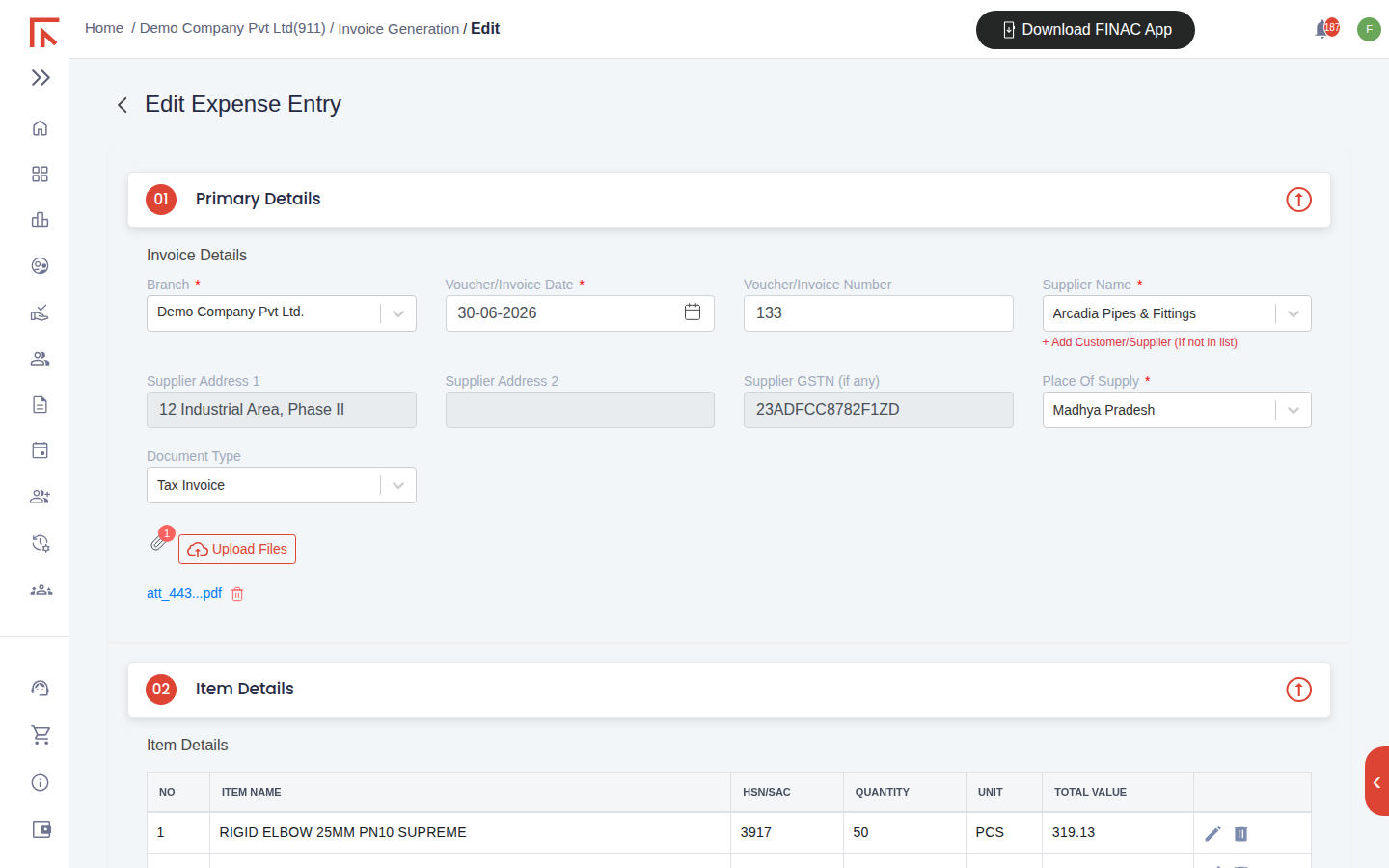
Changing the branch or the place of supply recalculates the tax split on the item rows, so review Item Details after either change. If the entry has already been included in a filed GST return, correct it through a credit or debit note in the next period rather than by editing the original.
Duplicating an invoice
Duplicate Invoice creates a new entry pre-filled from an existing one. It suits recurring bills and invoices: a monthly rent bill, a retainer invoice to the same customer, a standard product order.
- Select the three-dot icon on the row and choose Duplicate Invoice.
- The Add screen opens with the supplier or customer, place of supply, document type and item rows copied.
- Set the new Voucher/Invoice Date and Voucher/Invoice Number. With automatic numbering on, the next number is assigned.
- Adjust quantities or amounts, then Submit.
The original is untouched. The duplicate is a separate entry with its own audit history and payment status.
Viewing the e-way bill
An e-way bill is required for the movement of goods above the threshold value. Where an e-way bill has been generated for an invoice, View E-Way Bill on the more-actions menu opens it, so the transporter copy can be downloaded or printed alongside the invoice PDF. The action is available on sales invoices for outward movement and on expense entries where the supplier's e-way bill has been recorded against the bill.
Frequently asked questions
Can I edit an approved entry?
Yes, with edit rights. The audit history records the change, and the approver can be asked to approve again.
Does duplicating copy the attachment?
No. Attach the new period's document with Upload Files on the duplicate.
How do I delete an entry?
Deletion is restricted to users with the corresponding right, and an entry included in a filed return should be reversed with a credit or debit note instead. Contact your Finac account manager if a wrongly recorded entry needs to be removed.