Creating a Manufacturing Journal
A manufacturing journal records the conversion of purchased materials into a finished item: the inputs consumed, the primary item produced, any by-products, and the labour or overhead added along the way. Finac uses it to reduce stock of the inputs, increase stock of the output and arrive at a cost per unit for the finished item. This article walks through creating one from the Manufacturing Journal tab in Invoicing Advanced, section by section, and explains how the cost summary is calculated. For what the tab shows once entries exist, and for general journal vouchers under Other Entries, see Manufacturing Journal and Other Entries.
On this page
- Before you start
- Opening the form
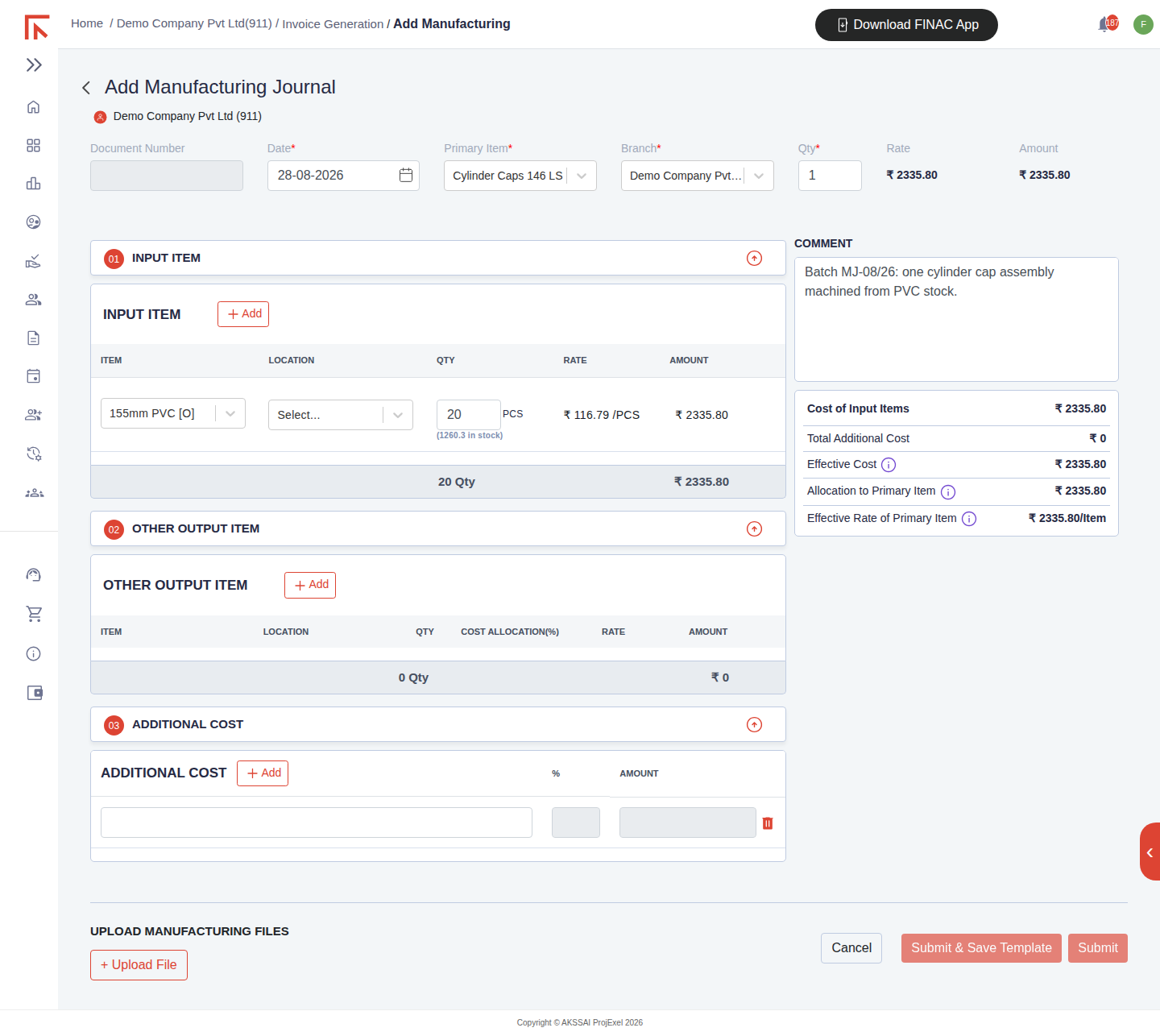
- Header: date, primary item, branch and quantity
- 01 Input Item
- 02 Other Output Item
- 03 Additional Cost
- Reading the cost summary
- Submitting, and saving as a template
- Frequently asked questions
Before you start
The form picks items from the client's stock master, so every input and output must already exist as a stock item with a unit, and inputs must be in stock. Set them up under Settings → Stock Manager first (see Stock Manager and Batch Management). The form shows the quantity in stock beside each input as you pick it, which is a quick check that opening stock and purchases have been recorded.
Opening the form
- Open the client and select Invoicing Advanced.
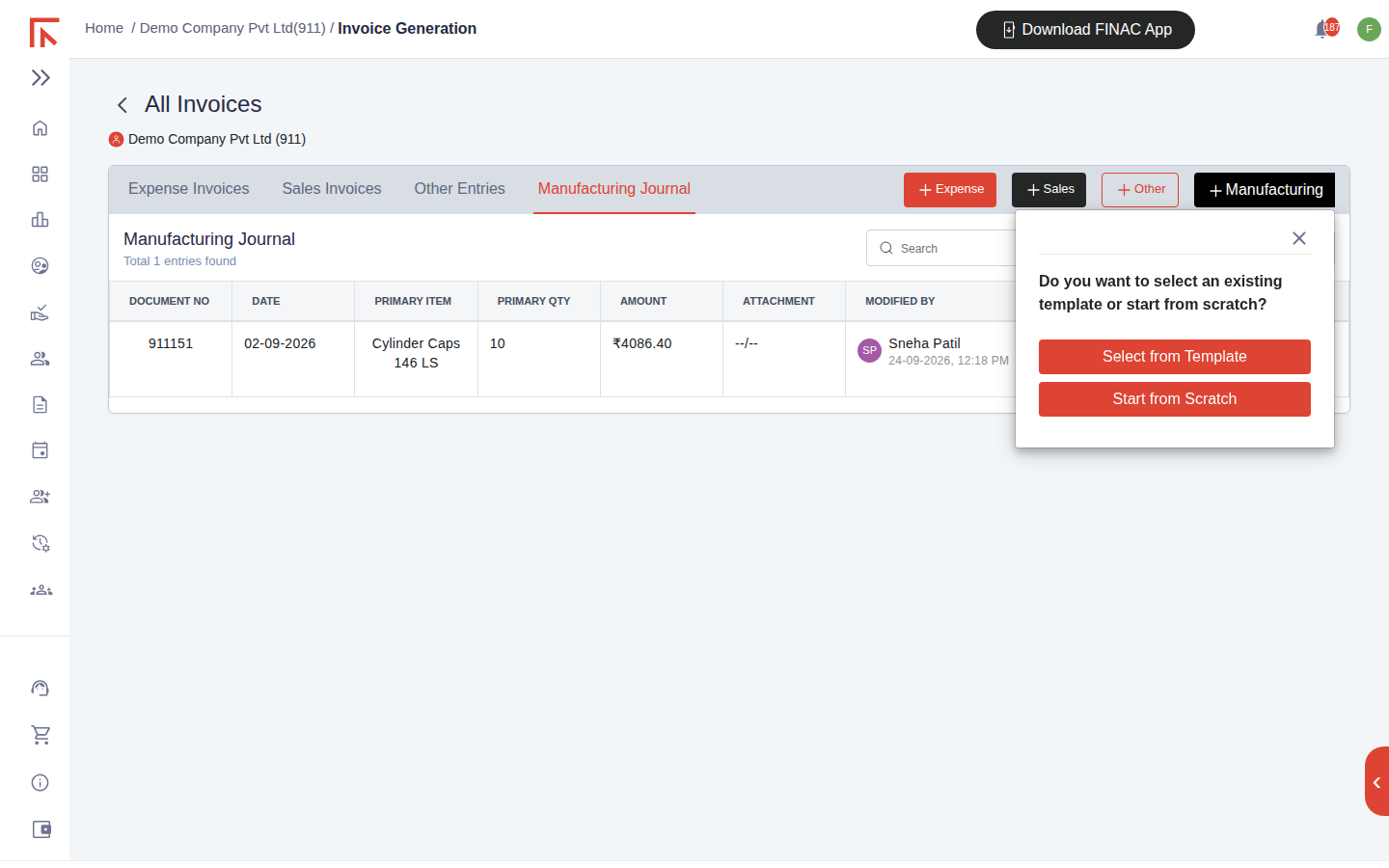
- Select the Manufacturing Journal tab to see existing entries, then select + Manufacturing at the top right.
- Choose Start from Scratch for a new recipe, or Select from Template to load a saved one and change only the date and quantities.
Header: date, primary item, branch and quantity
| Field | Notes |
|---|---|
| Document Number | Assigned by Finac on save; leave blank. |
| Date | The date production is booked. Stock moves on this date. |
| Primary Item | The finished item being produced, picked from the stock master. |
| Branch | The GST branch or location whose stock is affected. |
| Qty | How many units of the primary item this journal produces. |
| Rate / Amount | Calculated. Rate is the cost per unit of the primary item after all inputs and additional costs; Amount is Rate multiplied by Qty. |
01 Input Item
List the materials consumed. Select + Add for each line, pick the Item, choose its Location if stock is held in more than one place, and enter the Qty used. The Rate fills automatically from the item's current stock valuation and cannot be typed over, so the input cost always reflects what the material actually cost. The row total and the section total update as quantities change.
02 Other Output Item
Use this section when a process yields something besides the primary item, for example offcuts that can be sold, a by-product or a second grade. Add the item, location and quantity, then set Cost Allocation (%): the share of the total cost to be carried by this output. Whatever is allocated here is deducted from the cost carried by the primary item. Leave the section empty when there is a single output.
03 Additional Cost
Record labour, power, contract processing or overhead that should be absorbed into the product cost. Each line has a description and either a percentage of input cost or a fixed amount. These costs are added to the material cost before allocation, so they flow into the rate of the primary item and any other outputs in the same proportion.
Reading the cost summary
| Line | How it is calculated |
|---|---|
| Cost of Input Items | Sum of the input rows (quantity × stock rate). |
| Total Additional Cost | Sum of the additional cost rows. |
| Effective Cost | Cost of Input Items plus Total Additional Cost: the full cost of the production run. |
| Allocation to Primary Item | Effective Cost less the percentages allocated to other output items. |
| Effective Rate of Primary Item | Allocation to Primary Item divided by the primary Qty. This becomes the stock rate of the finished item. |
The Comment box is for the batch reference, shift or any note the reviewer will need. It is stored with the entry and shown in the Comment column of the Manufacturing Journal tab. Upload Manufacturing Files attaches the production sheet or batch card as evidence.
Submitting, and saving as a template
Select Submit to post the journal. Stock of each input falls by the quantity used, stock of the primary item and any other outputs rises, and the entry appears on the Manufacturing Journal tab with its document number, primary item, quantity and amount, ready for approval in the same way as an invoice. If the same recipe is produced regularly, select Submit & Save Template instead; the item lines and cost lines are stored, and next time Select from Template loads them so only the date and quantities need attention.
Frequently asked questions
The input item I need is not in the list.
It has not been created as a stock item, or it belongs to a different branch's stock. Add it in Stock Manager, or check the Branch selected in the header.
Why can I not edit the input rate?
The rate is the item's valuation in stock, so that material cost in the journal matches what the purchases cost. To change it, correct the purchase entries that set the stock rate rather than the journal.
The quantity in stock shown beside an input is lower than reality.
A purchase bill has not been recorded, or was recorded without item lines. Record or edit the bill so the quantity reaches stock, then return to the journal.
Can a manufacturing journal be edited after submission?
Yes, from the pencil icon on its row in the Manufacturing Journal tab. Stock and cost are recalculated on save, and the change is recorded in the entry's audit history.