Client Settings: Stock Manager and Batch Management
For a business that holds inventory, invoice lines need to name the item, its unit and, where lots matter, its batch. Stock Manager holds the item master in three parts, stock groups, stock items and units of measurement, and Batch Management records the batches for items tracked by lot or expiry. Together they drive the Stock Reports and the quantity fields on invoices. This article covers setting them up and maintaining them.
On this page
- Opening Stock Manager
- Stock groups
- Stock items
- Units of measurement
- Batch Management
- Frequently asked questions
Opening Stock Manager
- Open the client and select Settings.
- Select Stock Manager. Three cards appear: Stock Group, Stock Item and Units of Measurement.
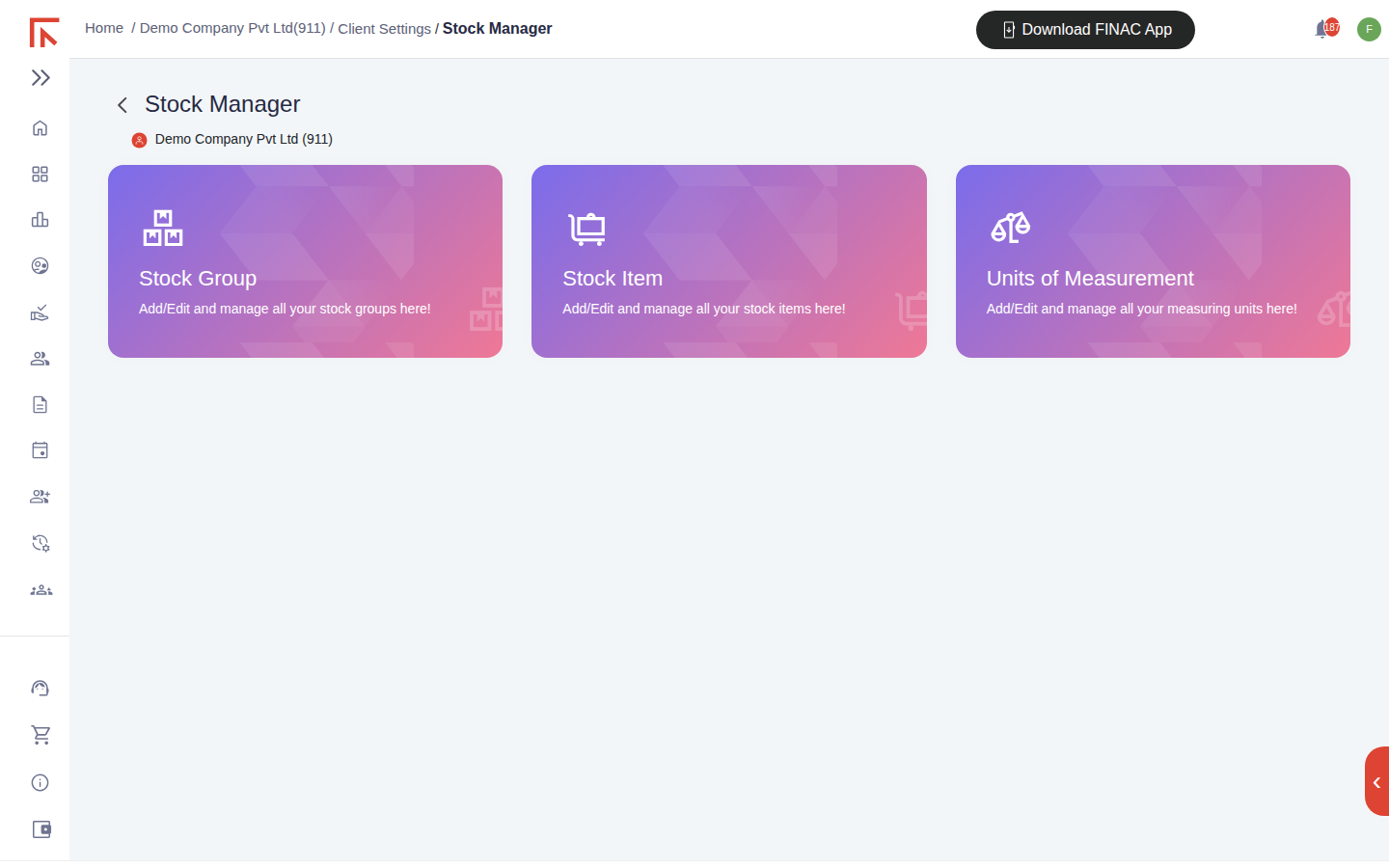
Set them up in that order. A unit must exist before an item can use it, and a group before an item can be placed in it.
Stock groups
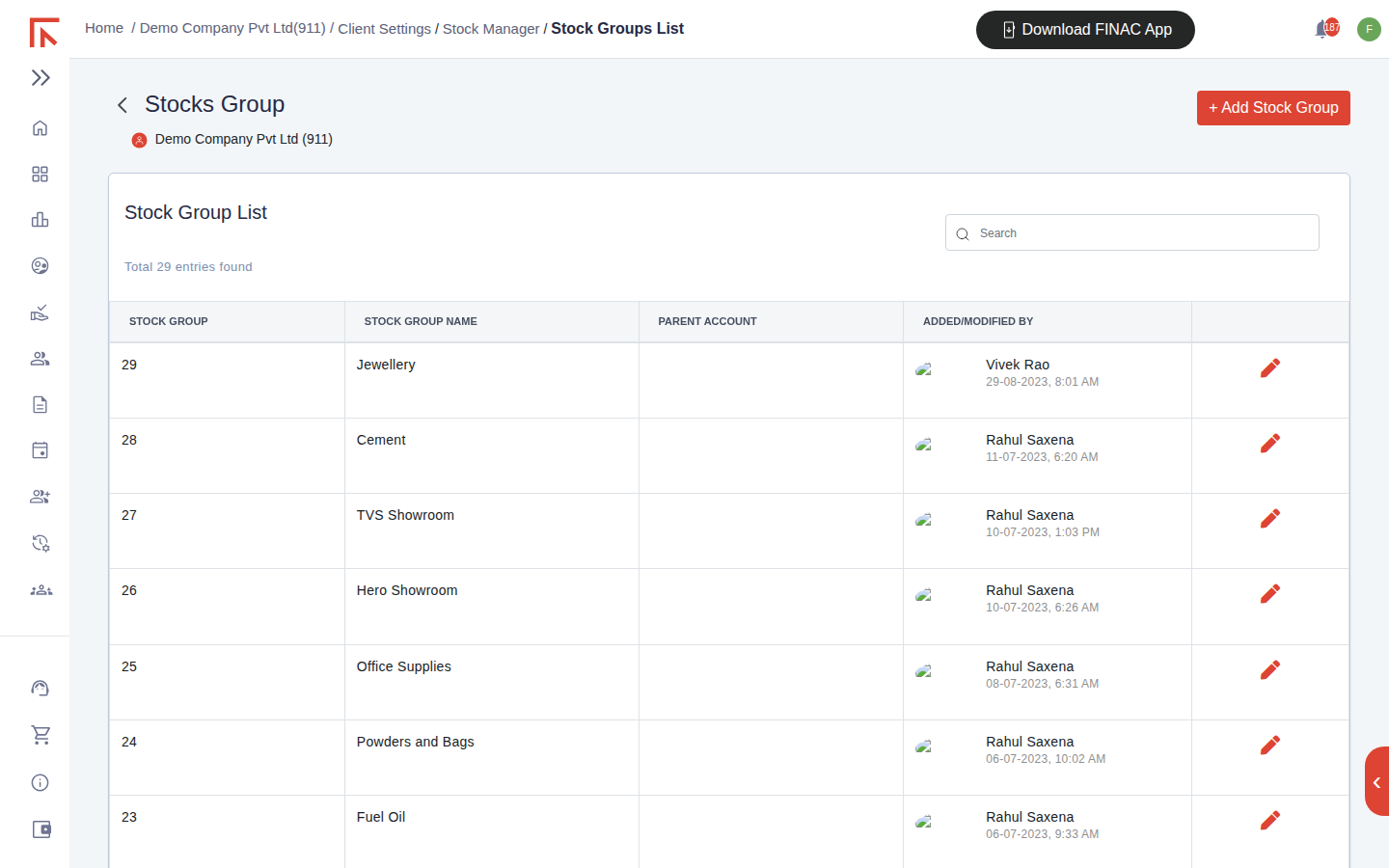
A stock group is a category of items used to organise the item list and to summarise the Stock Reports, for example Cement, Batteries or Office Supplies. Groups can be nested under a Parent Account. Select + Add Stock Group, enter the name, choose a parent if needed and save.
Stock items
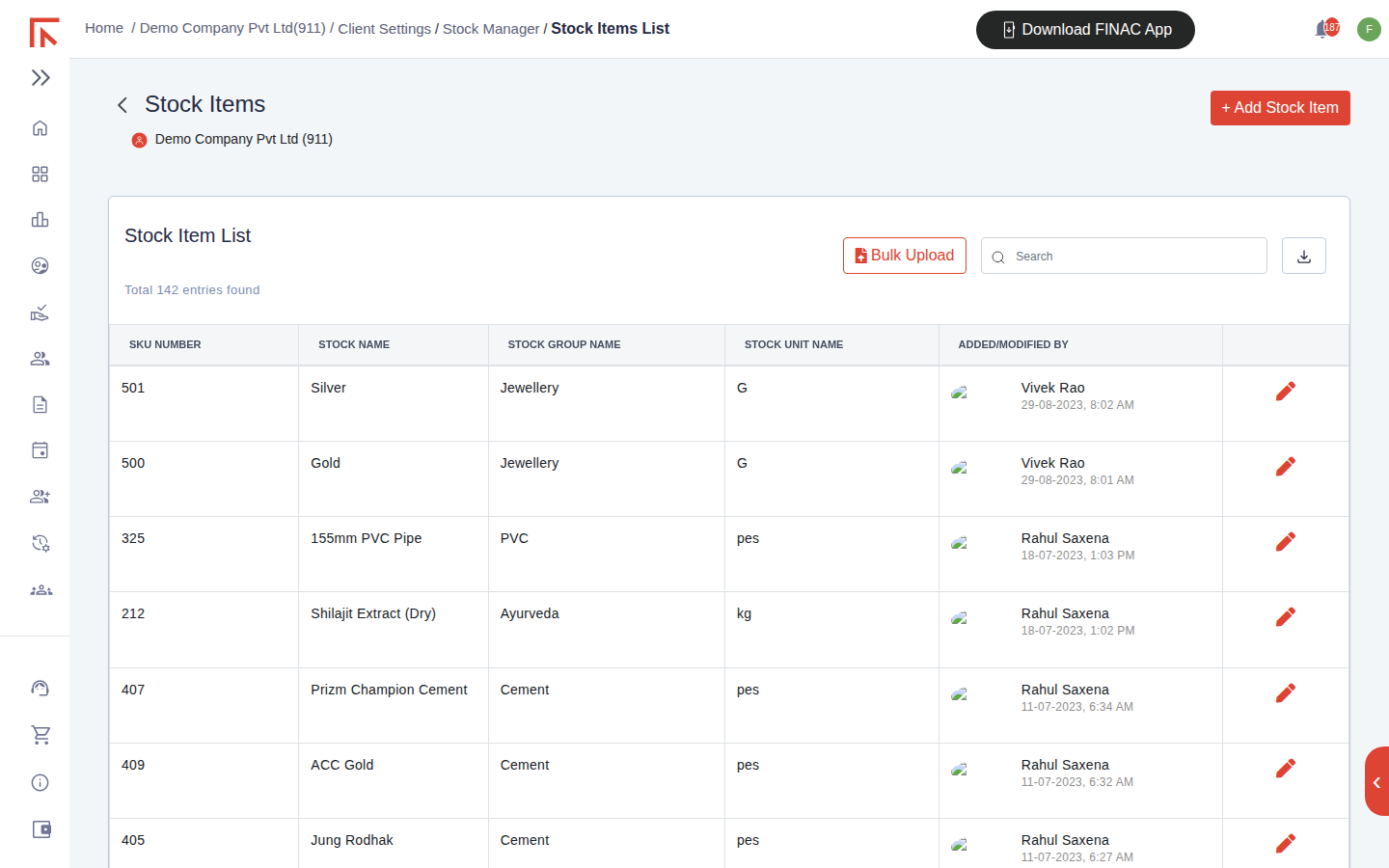
A stock item is anything bought or sold in quantity. Each item has an SKU Number, a name, its stock group and its unit. Items are picked on invoice lines, which is how purchases and sales update stock quantities. Select + Add Stock Item to create one, or Bulk Upload to import a list from a spreadsheet using the template provided.
| Field | Notes |
|---|---|
| SKU Number | The item's code, as printed on invoices and used in Stock Reports. Keep it stable once used. |
| Stock Name | The description shown on invoice lines. |
| Stock Group Name | The group the item reports under. |
| Stock Unit Name | The unit quantities are recorded in. With Alternate Unit switched on in General Setting, a second unit and conversion can be set on the item. |
| HSN/SAC | The classification carried onto invoice lines for GST. |
Units of measurement
Units are the measures items are counted in: pieces, kilograms, litres, bags, sets. Each has a name and a symbol, and the symbol is what prints on the invoice. Select + Add Unit of Measurement to create one.
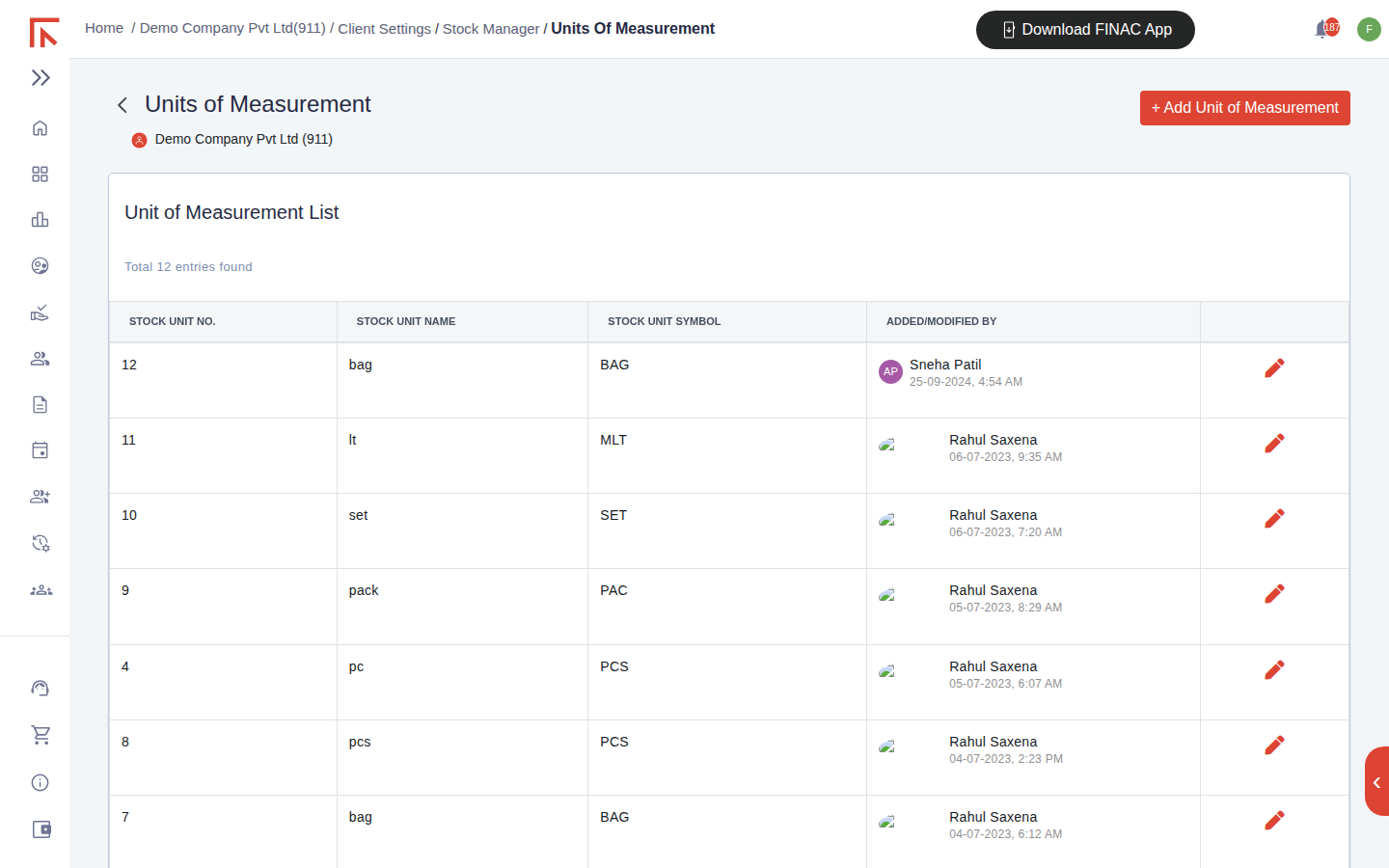
Keep the list short and consistent. Two units that mean the same thing (pcs and pc, for example) split the stock report for one item across two lines; create one and use it throughout.
Batch Management
Batches identify a specific lot of an item, with its manufacturing and expiry dates. They are used for pharmaceuticals, food, chemicals and any stock where the lot must be traceable. Batch Management is a separate card under Settings.
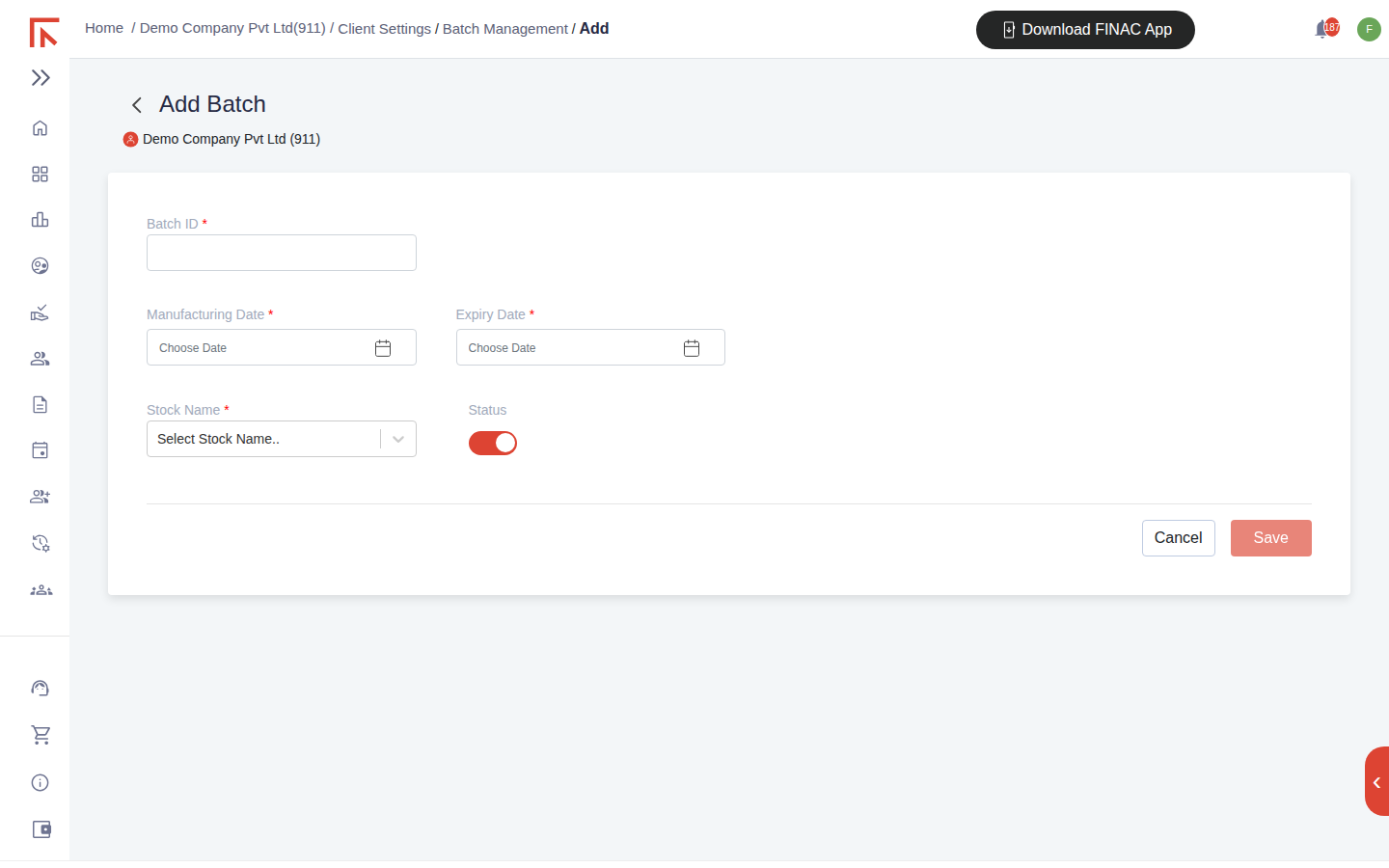
- Open Settings > Batch Management and select + Add Batch.
- Enter the Batch ID as it appears on the goods or the supplier's document.
- Set the Manufacturing Date and Expiry Date.
- Choose the Stock Name the batch belongs to, confirm the Status is active, and Save.
Once batches exist, invoice lines for the item offer a batch selector, and the Batch Summary and Batch Voucher reports under Stock Reports show quantity and movement by batch. Turn on the batch column for the manufacturing journal in General Setting if production consumes or creates batches.
Frequently asked questions
Do I need stock items for a service business?
No. Service invoices use a description and SAC code on each line; Stock Manager can be left empty.
Can an item belong to two groups?
No. An item sits in one group. Use a parent group where a broader grouping is needed for reporting.
How do opening stock quantities get in?
Through an opening entry recorded by the Finac team when the client is onboarded, or through the first purchase entries. Ask Support if opening quantities need to be loaded from a stock take.