Client Settings: General Setting, Invoice Templates and Numbering
General Setting is where a client's invoice behaviour is configured: which PDF layout a sales or expense document uses, whether HSN codes are validated, whether unique numbers are generated automatically, how manufacturing and stock features are switched on, and what each document type is called on the printed PDF. These are set once when the client is onboarded and revisited when the business changes how it invoices. This article covers each tab.
On this page
- Opening General Setting
- Sales Templates and Expense Templates
- HSN Checks
- Auto Unique Number
- Miscellaneous Settings
- Document Type Name
- Frequently asked questions
Opening General Setting
- Open the client and select Settings on the Client Dashboard.
- Select General Setting. The tabs run down the left of the screen.
Sales Templates and Expense Templates
The Sales Templates tab shows every PDF layout available for sales documents as a thumbnail with its name. Tick the check circle on each template the client may use, choose one with Mark This Default, and select Submit. The default is applied when an invoice is downloaded or emailed unless a different enabled template is chosen on the invoice.
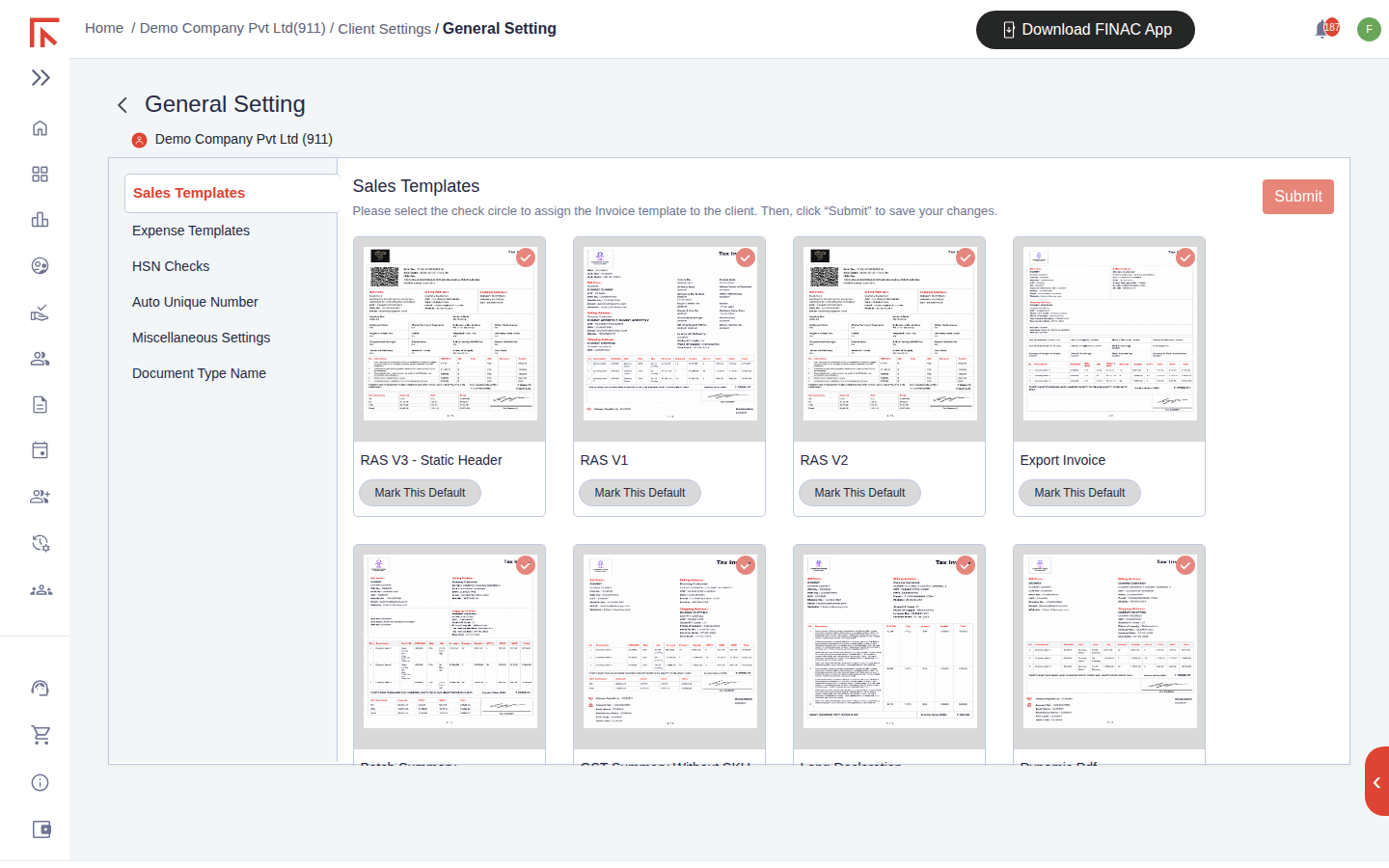
| Template | Use |
|---|---|
| RAS V1, V2, V3 (Static Header) | Standard tax invoice layouts with differing header treatment; V3 keeps the header fixed on every page of a long invoice. |
| Export Invoice | Export layout with currency, port and shipping fields. |
| Batch Summary | Groups lines by batch, for clients tracking lots or expiry. |
| GST Summary Without SKU | Shows the GST summary but omits stock codes, for service or simple trading invoices. |
| Long Declaration | Carries an extended declaration block, for example for regulated goods. |
| Dynamic PDF, Generic PDF, Dynamic Primary | Flexible layouts that adapt to the fields present on the invoice. |
Expense Templates offers the equivalent set for expense documents, used when a purchase entry is downloaded as a PDF.
HSN Checks
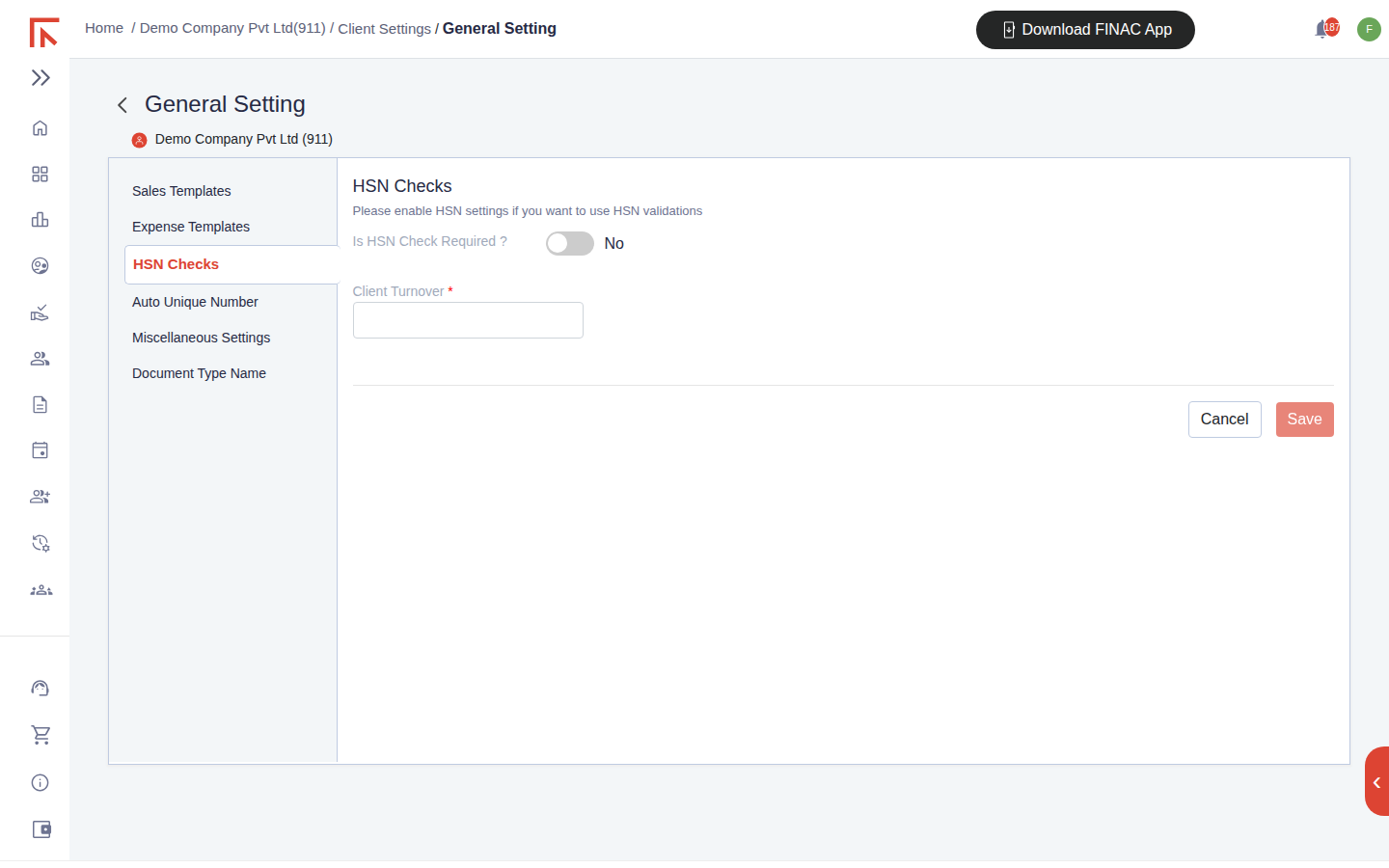
Turn on Is HSN Check Required? to validate the HSN or SAC code on every invoice line and enforce the number of digits the client must report. Enter the Client Turnover, because the minimum HSN digits required on invoices depend on the business's annual turnover under the GST rules. Select Save.
Auto Unique Number
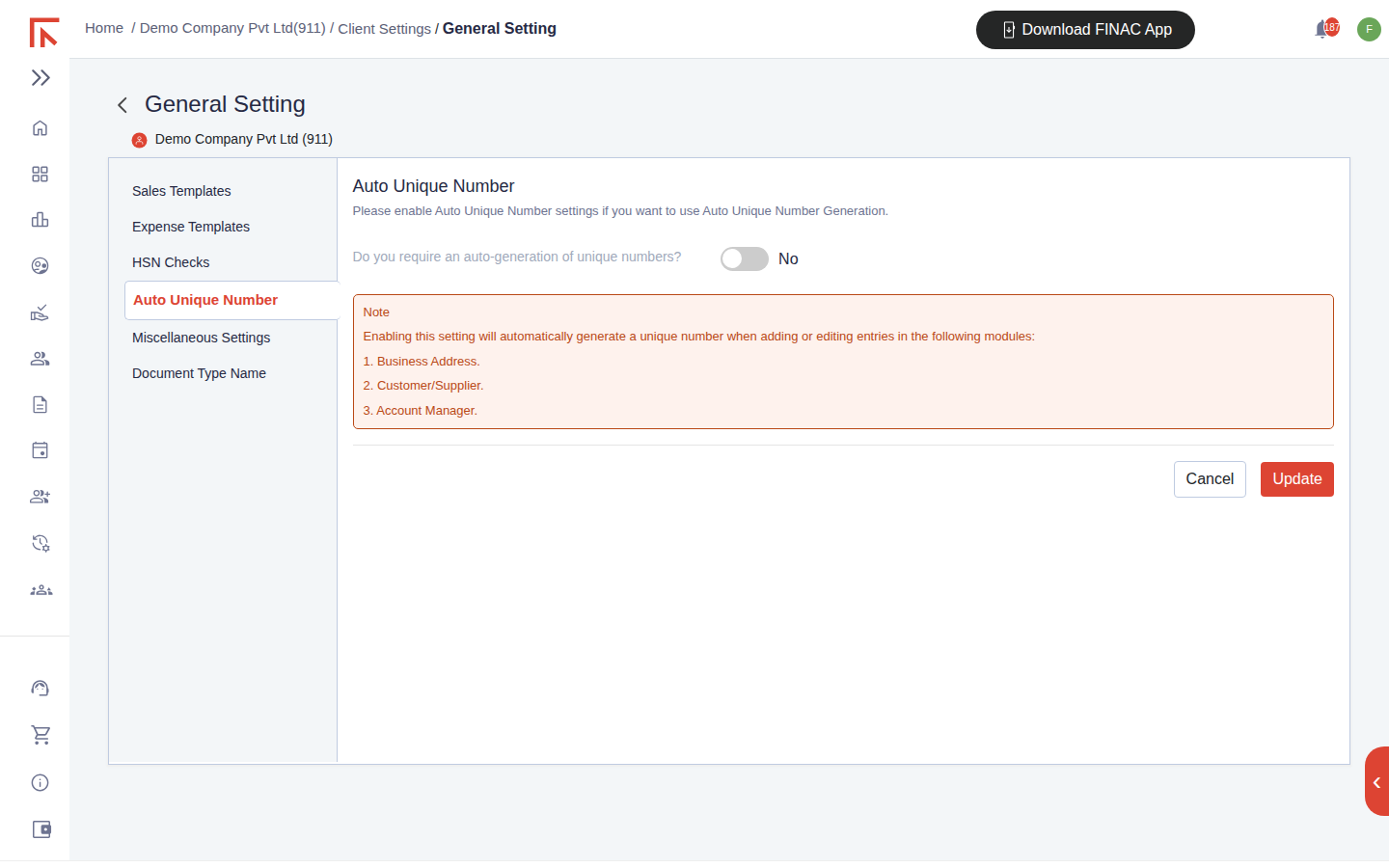
Turn on Do you require an auto-generation of unique numbers? and select Update to have Finac assign the next unique number automatically when a record is added or edited in Business Address, Customer/Supplier and Accounts Manager. With it off, the unique number is typed by the user on each record.
Miscellaneous Settings
| Setting | Effect |
|---|---|
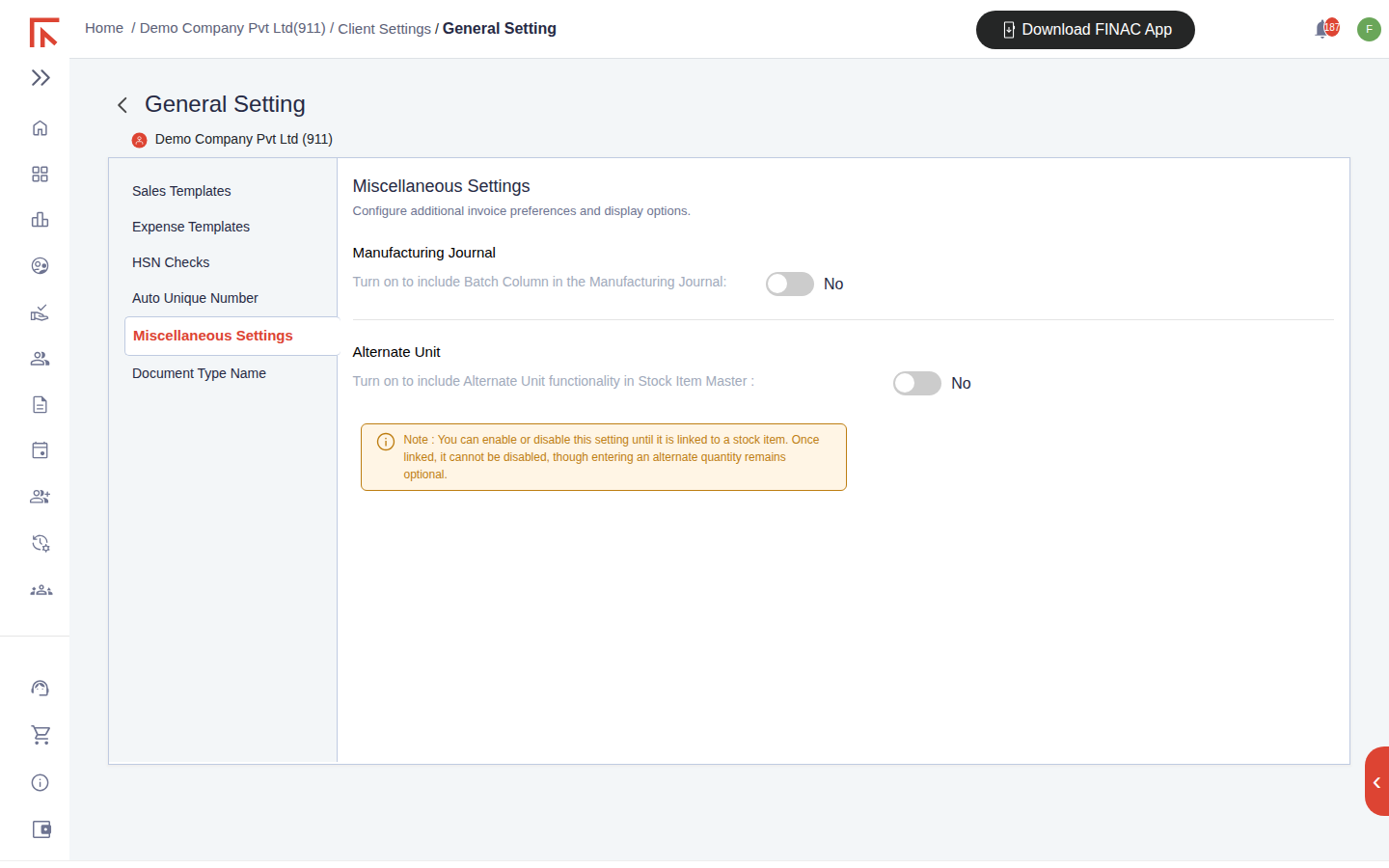
| Manufacturing Journal: Batch Column | Adds a batch column to the manufacturing journal so consumption and output can be recorded by lot. |
| Alternate Unit | Adds alternate unit functionality to the Stock Item master, so an item can be bought in one unit and sold in another (cartons and pieces, for example). Once an alternate unit is linked to a stock item the setting cannot be turned off, though entering an alternate quantity on a line remains optional. |
Document Type Name
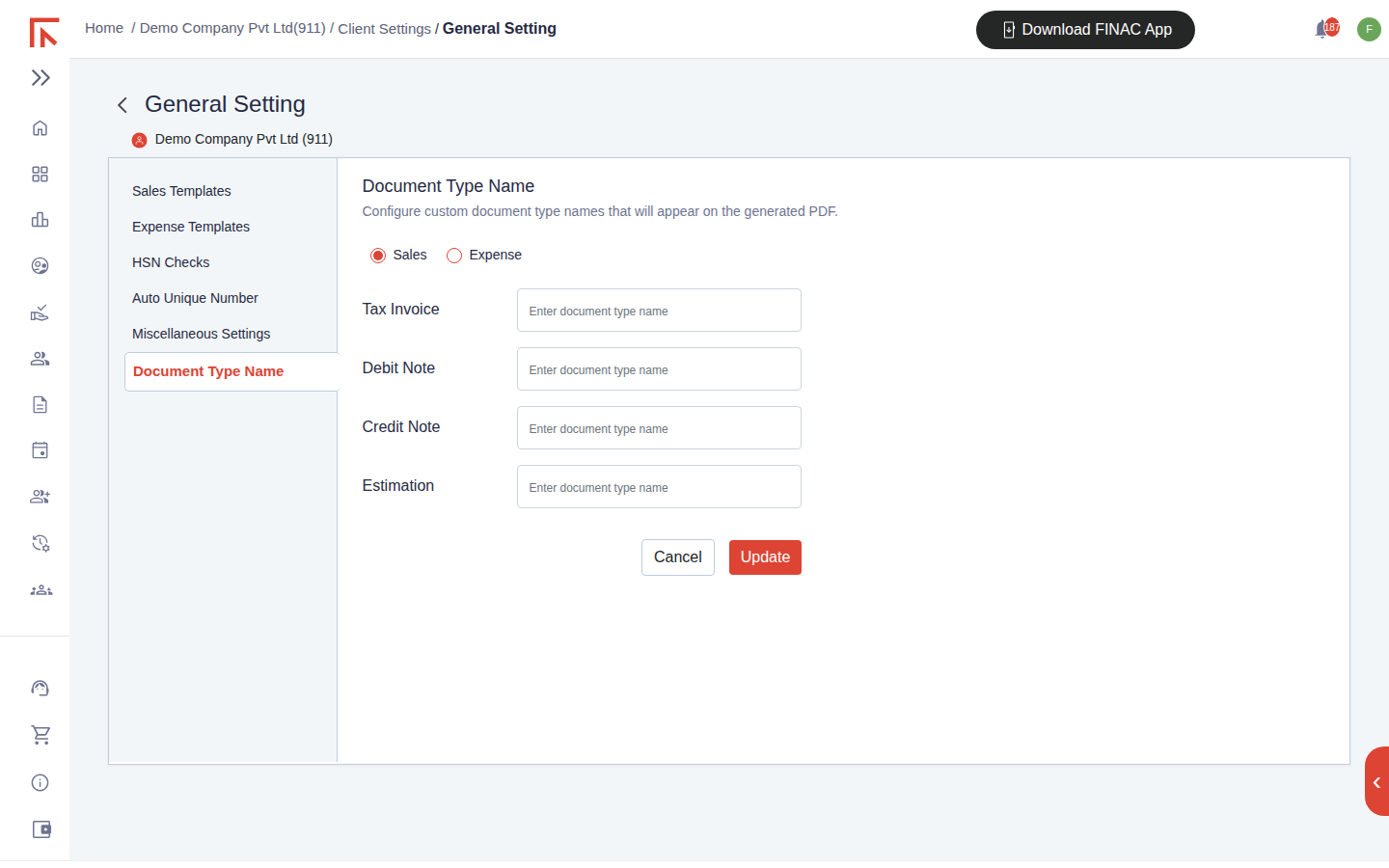
Each document type has a system name (Tax Invoice, Debit Note, Credit Note, Estimation) and, optionally, an alternate name that the business prefers, for example "Proforma Invoice" in place of Estimation. Enter the alternate name against the type, separately for Sales and Expense, and select Update. The alternate name is shown beneath the system name in the document type dropdown on invoicing screens and printed as the heading of the PDF.
Frequently asked questions
Can different branches use different invoice templates?
Templates are enabled per client. Enable each layout the client needs and choose the right one on the invoice when it differs from the default.
We changed the default template. Do old invoices change?
No. An invoice is rendered with the template in force when it was created; downloading it again reproduces the same layout.
What turnover figure should I enter for HSN Checks?
The aggregate turnover of the previous financial year, which is the figure the GST rules use to set the minimum HSN digits.