Stock Reports: Summary, Statement, Limit and Batch
For a client that holds inventory, the Stock Reports group under Reports turns the quantities recorded on purchase bills, sales invoices and manufacturing journals into five views: the Stock Summary of opening, inward, outward and closing stock by item; the Stock Statement of every movement of one item; the Stock Limit view of quantities on hand at a date; and the Batch Summary and Batch Voucher for items tracked by lot. This article explains what each report contains, how to run it and how the figures are valued.
On this page
- Where the figures come from
- Stock Summary
- Stock Statement
- Stock Limit
- Batch Summary and Batch Voucher
- Frequently asked questions
Where the figures come from
Stock reports read the item lines on transactions. A purchase bill with item lines is inward stock; a sales invoice with item lines is outward stock; a manufacturing journal is outward for its inputs and inward for its outputs. Opening stock is the closing figure of the previous year, or the opening quantities entered when the item was created. An entry recorded without item lines, for example a bill posted to an expense ledger only, does not move stock, which is the first thing to check when a report looks short.
Items, their units and their groups are maintained under Settings → Stock Manager (see Stock Manager and Batch Management). Where an item has an alternate unit, reports show two quantities: the primary unit on top and the alternate beneath.
Stock Summary
- Open the client, select Reports, and under Stock Reports select View beside Stock Summary.
- Keep Current Financial Year or choose the previous year. Optionally pick a Stock Group to limit the report to one category.
- Select Get Stock Summary.
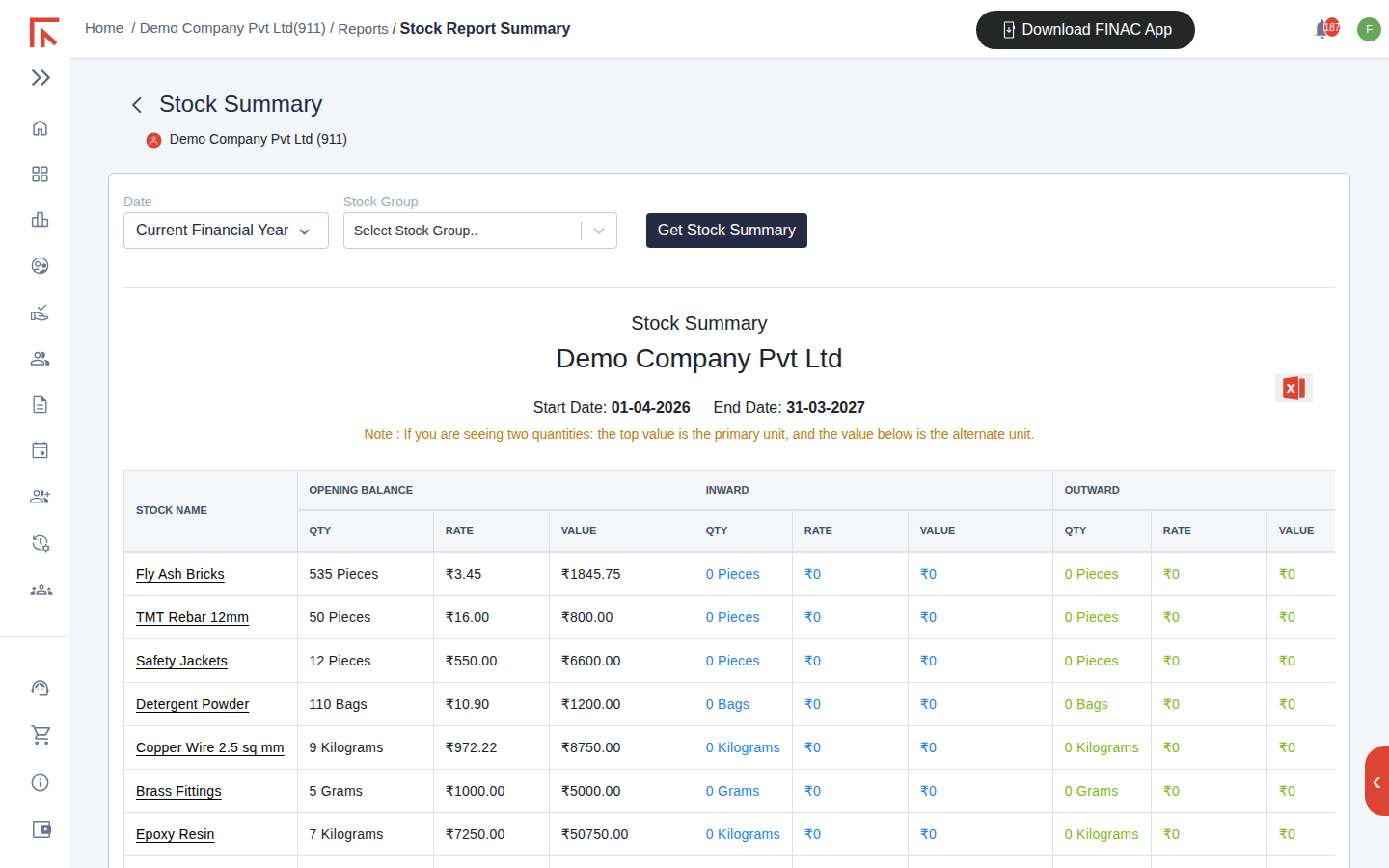
| Column group | Meaning |
|---|---|
| Opening Balance | Quantity, rate and value at the start of the period. |
| Inward | Purchases and manufactured output during the period, at the rate they came in. |
| Outward | Sales and materials consumed during the period. |
| Closing Balance | Opening plus inward less outward, valued at the resulting average rate. The total of this column is the stock figure for the Balance Sheet. |
The Excel icon downloads the table, which is the usual way to hand a stock valuation to an auditor at year end. For the movements behind any row, run the Stock Statement for that item.
Stock Statement
The Stock Statement is the ledger of one item: every inward and outward movement in date order with the document that caused it and the running quantity. Select View beside Stocks Statement, pick the Stock Name, choose the financial year and select Get Stock Statement. Use it to trace a quantity that looks wrong in the Summary back to the bill or invoice responsible, or to see how quickly an item turns over.
Stock Limit
Stock Limit shows the quantity on hand of each item in a group as at a date, so that items running low can be picked out for reordering. Select View beside Stock Limit, choose the Date and Stock Group (both required), leave the Quantity filter at All or narrow it, and select Get Report. Show stock graph adds a chart of the same figures. Where an item has an alternate unit, both quantities are shown, the primary unit above the alternate.
Batch Summary and Batch Voucher
For items tracked by batch under Batch Management, two further reports break the figures down by lot.
| Report | Shows | Controls |
|---|---|---|
| Batch Summary | Opening, inward, outward and closing quantity for each batch of an item, with manufacturing and expiry dates where recorded. | Financial year, Stock Item; Get Report. |
| Batch Voucher | Every transaction on one batch: the documents that brought the lot in and those that issued from it. | Financial year, Stock Item, Batch ID; Get Report. |
Batch Summary answers how much of each lot remains and which lots are nearing expiry; Batch Voucher shows exactly which invoices a particular lot went out on, which is what a recall or a quality query requires.
Frequently asked questions
An item shows a negative closing quantity.
More has been issued than received. Either a purchase bill was recorded without item lines, so the receipt never reached stock, or the opening quantity was not entered when the item was created. Trace it in the Stock Statement, then edit the bill to add the item line or correct the opening stock.
Why does the closing value not equal quantity multiplied by the last purchase rate?
The rate shown is the average rate of the stock on hand (value divided by quantity), so it moves with each receipt rather than jumping to the latest purchase price.
The Stock Summary is empty for the current year.
Either no transactions carry item lines yet, or the items belong to a stock group other than the one selected. Clear the Stock Group filter and check that bills are being recorded with items rather than to an expense ledger alone.
Can I see stock for one branch only?
Stock is recorded against a location on each transaction. The Stock Statement shows the location on every movement; for a branch-level total, download the Summary and filter by the location column, or ask your Finac accountant to set the branch up as a stock group.