File Manager and Insights Dashboard
Two tiles on the Client Dashboard sit alongside the transactional modules. File Manager is the document store for the client: bank statements, bills, returns and supporting papers, organised in folders. Insights is a summary view of the financial year, built from the same ledgers that feed the Reports module. This article covers what each holds and how to use them.
On this page
File Manager
Select File Manager on the Client Dashboard. The screen opens at the client's root folder and shows the folder count, the folders themselves under All Folders, and any files stored at the root under All Files. The grid and list icons at the right switch the view.
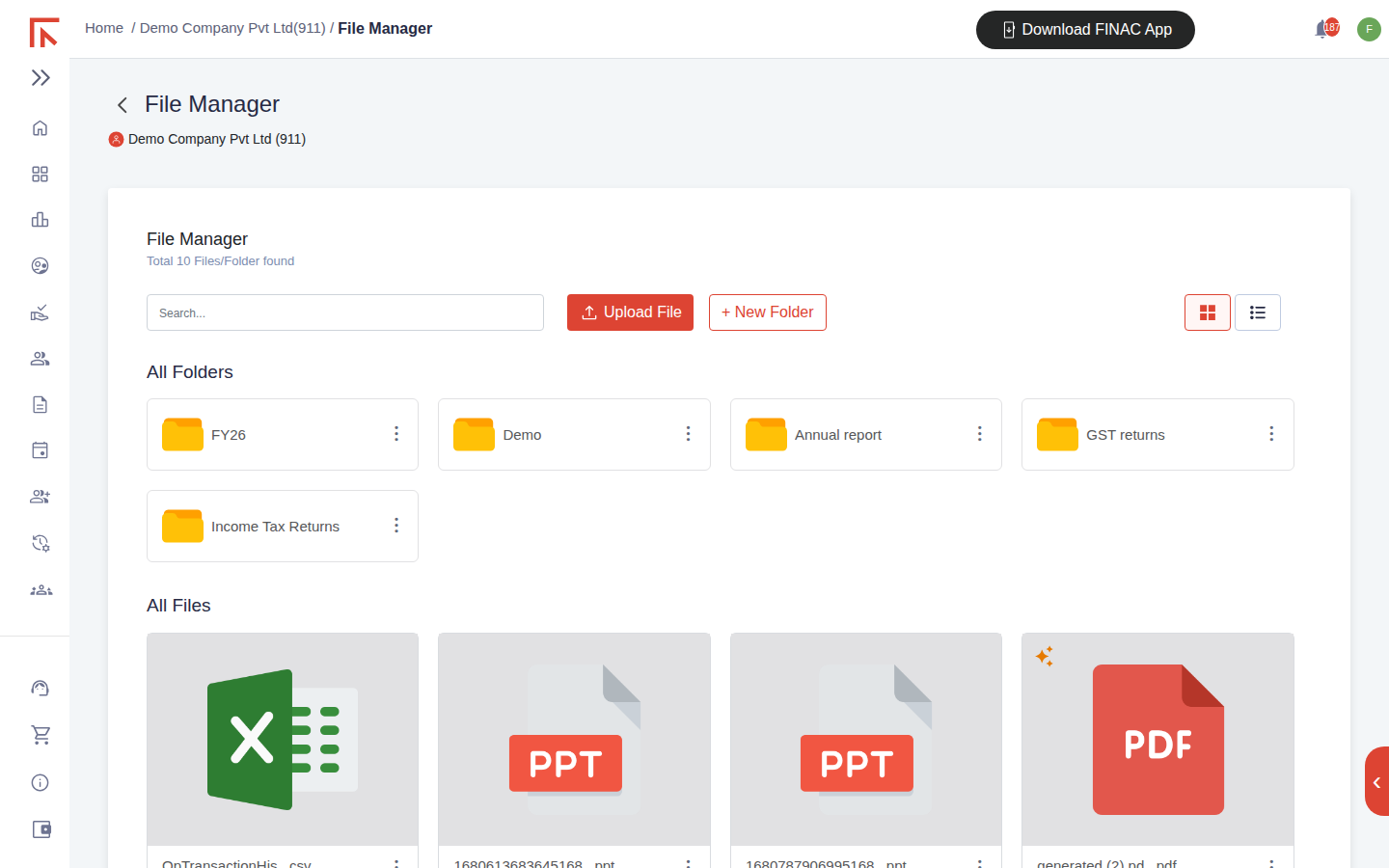
Folders and files
Folders can be nested to any depth. A common structure is one folder per financial year, with sub-folders for bank statements, purchase bills, sales invoices and returns, plus standing folders for the annual report and statutory filings. Select a folder to open it; the breadcrumb under the toolbar (Home / FY26, for example) shows where you are and takes you back up. The three-dot menu on a folder or file offers rename, move and download actions. Files uploaded against an Open Item or received through WhatsApp are filed here as well, so the File Manager is the complete record of what has been received for the client.
| Control | Use |
|---|---|
| Search | Finds a file or folder by name within the client. |
| Upload File | Adds one or more files to the current folder. |
| + New Folder | Creates a sub-folder in the current folder. |
| Grid / List | Switches between thumbnails and a detailed list with size and date. |
Uploading a file
- Open the folder the file belongs in, for example the current financial year.
- Select Upload File and choose the file, or drag it onto the screen. PDF, image, spreadsheet and presentation formats are accepted.
- The file appears under All Files with a type icon and its name.
Bank statements and bills that need to be recorded in the books are uploaded from Invoicing Advanced rather than here, because that screen also runs the reading and matching that creates the entries. Use File Manager for supporting documents, returns and anything else that needs to be kept with the client but not posted.
Insights
Select Insights on the Client Dashboard. The Insight Summary shows the current financial year at a glance. Choose a Branch and select Get Report to limit the view to one branch, or leave it blank for the whole client.
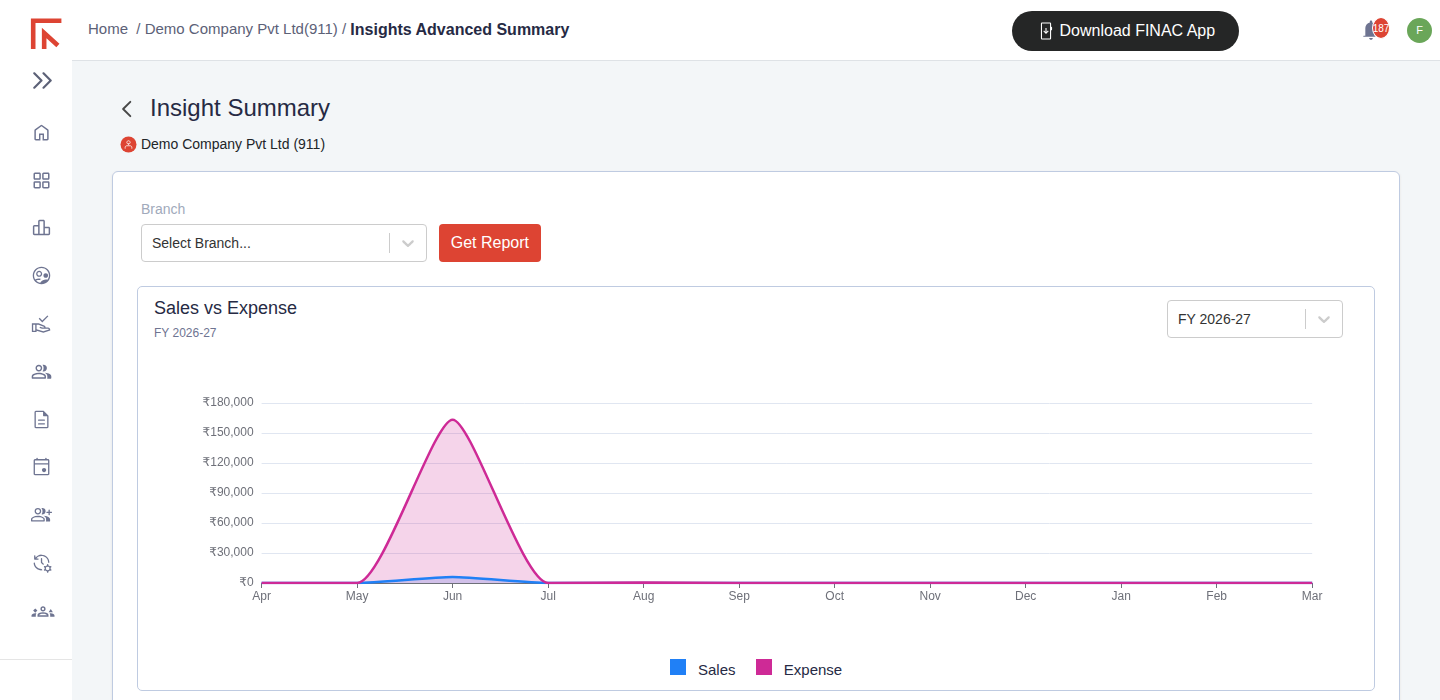
| Panel | What it shows |
|---|---|
| Sales vs Expense | Monthly sales and expenses for the selected financial year, April to March, as two lines. The FY selector on the panel changes the year. |
| Liabilities | A breakdown of equity, retained earnings, liabilities, tax payable and supplier balances, with the total. |
| Assets | A breakdown of assets, customer balances, tax receivable, inventory and cash and cash equivalents, with the total. |
| Total Sales / Total Expenses | Current financial year against the previous one, with View More opening the detailed report. |
Insights reads the same ledgers as the trial balance and balance sheet, so a figure here can be traced to a report and then to the entries behind it. For a period other than the financial year, or for a printable statement, use Reports.
Frequently asked questions
Can the client see File Manager?
Yes. A client user with access to the business sees the same folders and can upload documents, which is how supporting papers are usually provided.
Why does an uploaded bill in File Manager not appear in Invoicing Advanced?
File Manager stores the document; it does not record it in the books. Upload bills and bank statements from Invoicing Advanced, or ask the team to process a file already in File Manager.
The Insights figures differ from my own numbers.
Insights shows the books as recorded to date. If a statement or bill for the period has not yet been uploaded and processed, the figures will not include it.