Standard Operating Procedures (SOPs)
Every client has working rules that are not visible in the books: which bank statement format to expect, who approves an expense above a threshold, how a recurring supplier's bill is to be coded, what to check before a return is filed. The SOPs module stores these procedures against the client, written in a rich-text editor or attached as a file, so that anyone picking up the client's work follows the same steps. This article explains how to view, write and maintain SOPs.
On this page
Opening SOPs
- Open the client from the Clients List.
- Select the SOPs tile on the Client Dashboard.
The SOPs list
The SOPs List shows each procedure on file for the client with its file name, who added or last modified it and when, and an edit action. The search box filters the list by name.
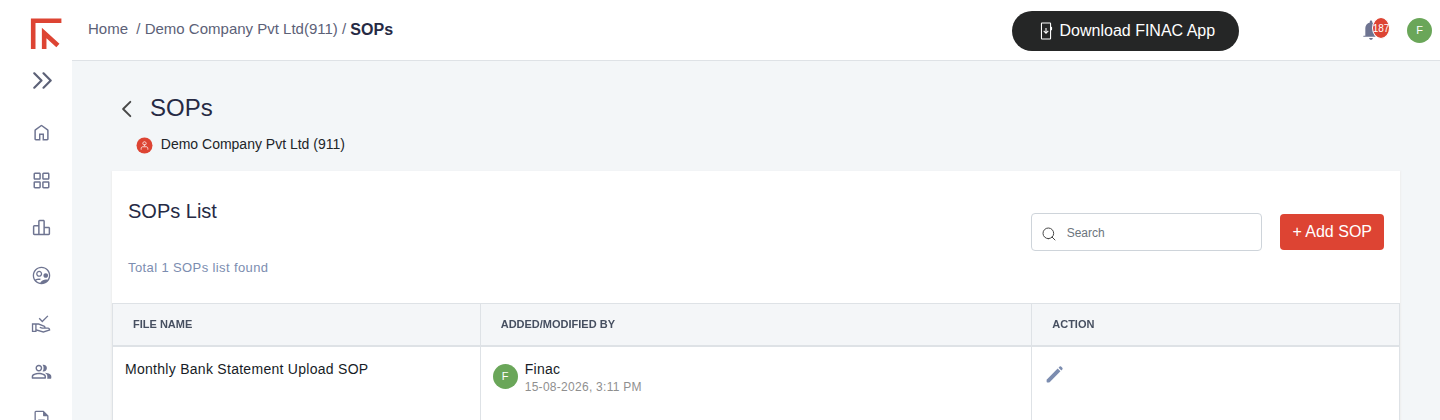
| Column | Meaning |
|---|---|
| File Name | The title given to the procedure when it was created. |
| Added/Modified By | The user who created or last changed the SOP, with the date and time. |
| Action | The pencil icon opens the SOP for reading or editing. |
Writing a new SOP
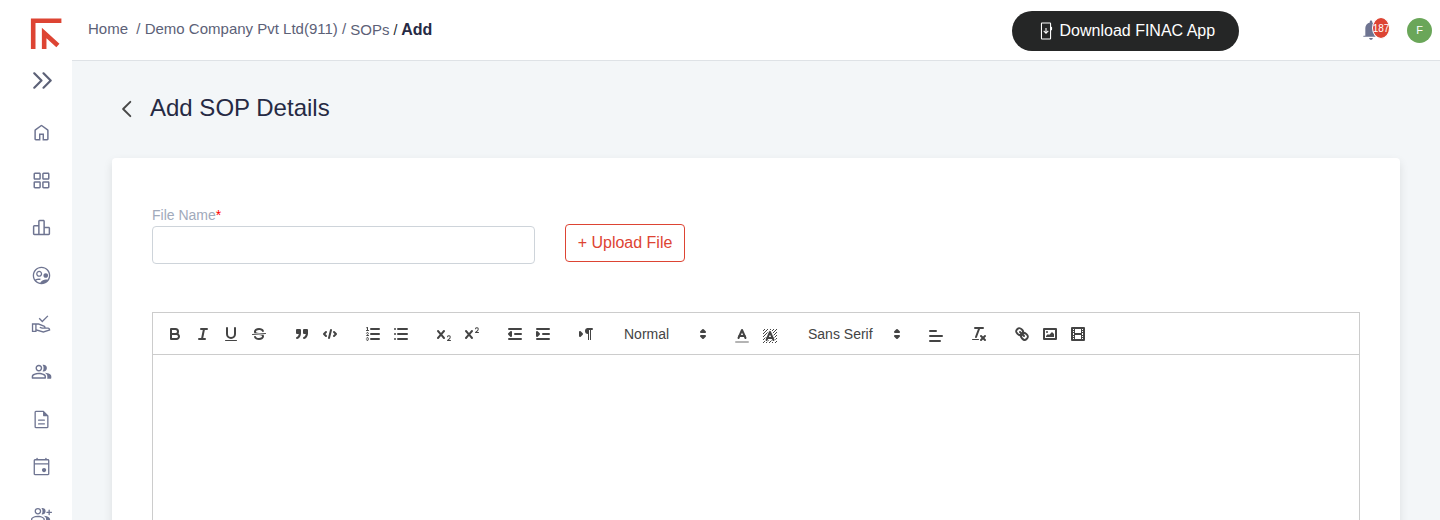
- Select + Add SOP.
- Enter a File Name. Use a name that says what the procedure covers and how often it runs, for example "Monthly Bank Statement Upload SOP".
- Write the procedure in the editor. The toolbar provides headings, numbered and bulleted lists, bold and italic, block quotes, code formatting, text colour, alignment, links, images and tables.
- To attach an existing document instead of, or in addition to, the written text, select + Upload File.
- Select Save. The SOP appears in the list with your name and the time.
To change a procedure later, open it from the list with the pencil icon, edit and save. The Added/Modified By column updates so the team can see when the current version was set.
What to put in an SOP
An SOP is most useful when it records the decisions that someone new to the client would otherwise have to ask about. Typical contents:
- Document intake. Which bank accounts the client holds, the statement format each bank provides, where statements and bills arrive (email, WhatsApp, File Manager) and by what date each month.
- Coding rules. Recurring suppliers and the expense head each is booked to, how reimbursements to directors or staff are treated, which entries go to a suspense account pending a query.
- Approvals. Who at the client approves expense entries, and any value threshold above which approval is needed before posting.
- Return checklist. The checks to complete before GSTR-1 and GSTR-3B are filed for the client, for example confirming the month tags on Outward Supplies and reviewing new suppliers for GSTIN.
- Contacts. Who to reach at the client for documents, for approvals and for queries, and the preferred channel.
Keep each SOP to one process. Several short procedures are easier to keep current than one long document.
Frequently asked questions
Can the client see the SOPs?
Users with access to the client can open the SOPs module. If a procedure is internal to the team, say so in the title and keep client-facing instructions in a separate SOP.
Is there a version history?
The list shows who last modified each SOP and when. To keep earlier versions, upload them as files with the SOP or note the change at the top of the text.
Can one SOP apply to all my clients?
SOPs are stored per client. For a procedure that is the same everywhere, keep a master copy and add it to each client, so the client's list is complete on its own.