Ledger Statement, General Ledger and Daybook
Three reports in Finac show the transactions behind a balance rather than the balance alone. The Ledger Statement lists every entry on one ledger, such as a supplier, a customer or a bank account, with a running balance. The General Ledger does the same for every ledger at once, grouped by party, for a chosen period. The Daybook is the chronological register of every voucher recorded in the period, whatever the ledger. This article explains when to use each, how to run them and how to read the columns. The Monthly Ledger Summary, which condenses one ledger to a month-by-month view, is covered at the end.
On this page
- Which report to use
- Ledger Statement
- General Ledger
- Daybook
- Monthly Ledger Summary
- Frequently asked questions
Which report to use
| Question | Report |
|---|---|
| What do we owe this supplier, and which bills make up the balance? | Ledger Statement for the supplier |
| Send a customer a statement of account | Ledger Statement for the customer, downloaded to Excel |
| Review every party's movements for the quarter before closing | General Ledger for the quarter |
| What was recorded last week, in order? | Daybook for the week |
| How has a ledger moved month by month across the year? | Monthly Ledger Summary |
All four reports are under Reports → Financials on the client, and each has an Excel icon that downloads the table as shown.
Ledger Statement
- Open the client, select Reports, and select View beside Ledger Statement.
- Under Ledger Name, start typing the party or account and select it from the list. Every ledger in the client's chart of accounts is available, including bank, cash, tax and expense ledgers, not only parties.
- Leave Branch empty for all branches, or select one to restrict the statement to that GST branch.
- Under Date, keep Current Financial Year or switch to the previous year, then select Get Statement.
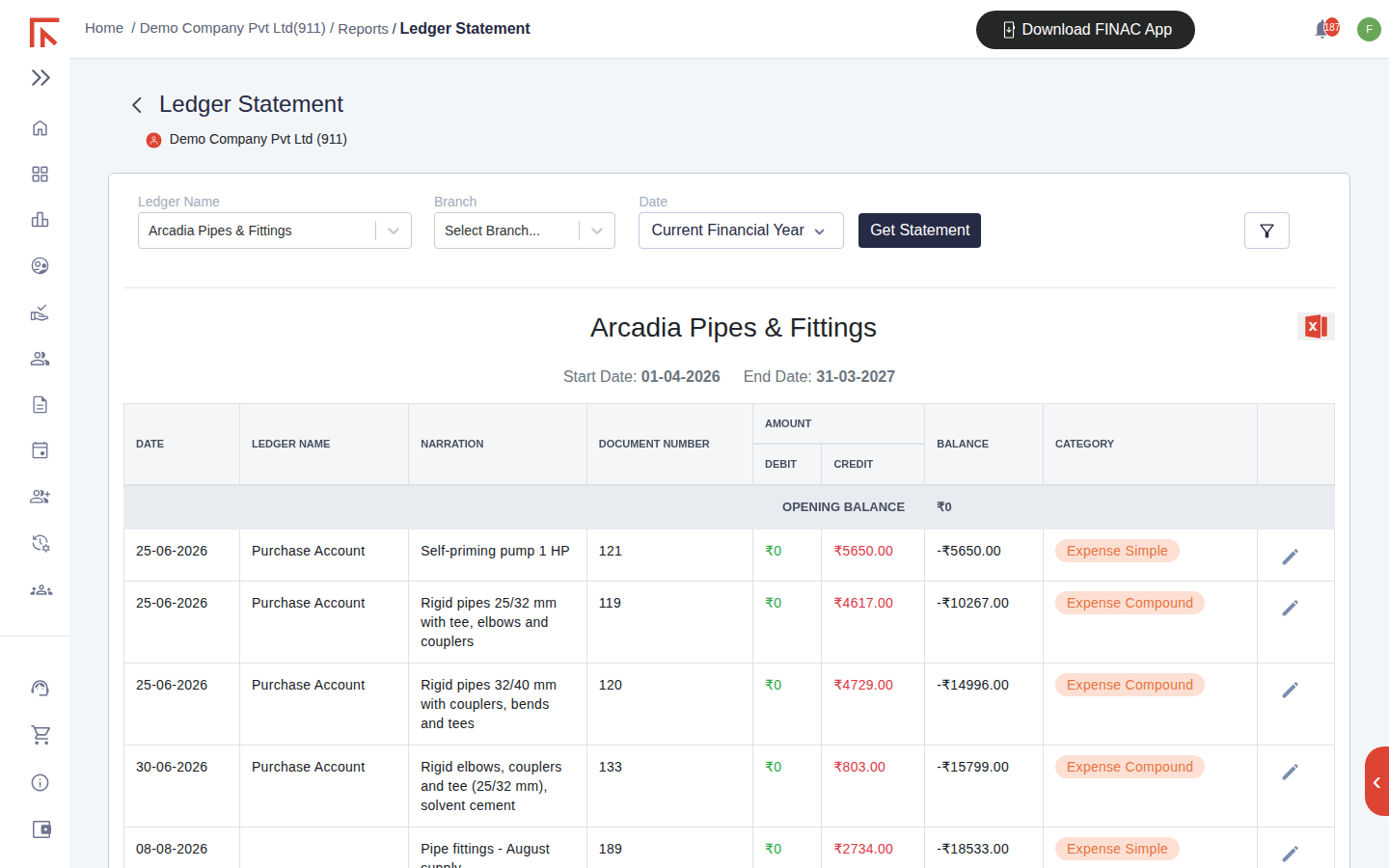
| Column | Meaning |
|---|---|
| Date | Document date of the entry. |
| Ledger Name | The other side of the entry. On a supplier statement this is usually Purchase Account for bills and the bank ledger for payments. |
| Narration | The item description or narration recorded on the entry. |
| Document Number | The bill or invoice number, or the bank reference for a payment. |
| Debit / Credit | The amount posted to this ledger. For a supplier, bills are credits and payments are debits; for a customer the reverse. |
| Balance | Running balance after the entry. A negative balance on a supplier is the amount payable; a positive balance on a customer is the amount receivable. |
| Category | The entry type: Expense Simple, Expense Compound (an entry with several items), Sales Entry, Bank Entry and so on. |
The pencil icon at the end of a row opens the underlying entry, so a doubtful figure can be checked and corrected without leaving the report. Opening Balance at the top and Closing Balance at the bottom agree to the party's line in the Trial Balance for the same dates.
General Ledger
The General Ledger is the Ledger Statement for every ledger in one report. Because it can run to many pages, it is limited to a 90-day window.
- Select View beside General Ledgers.
- Select Select Date Range, pick a Start Date and an End Date no more than 90 days apart, and select Get Report.
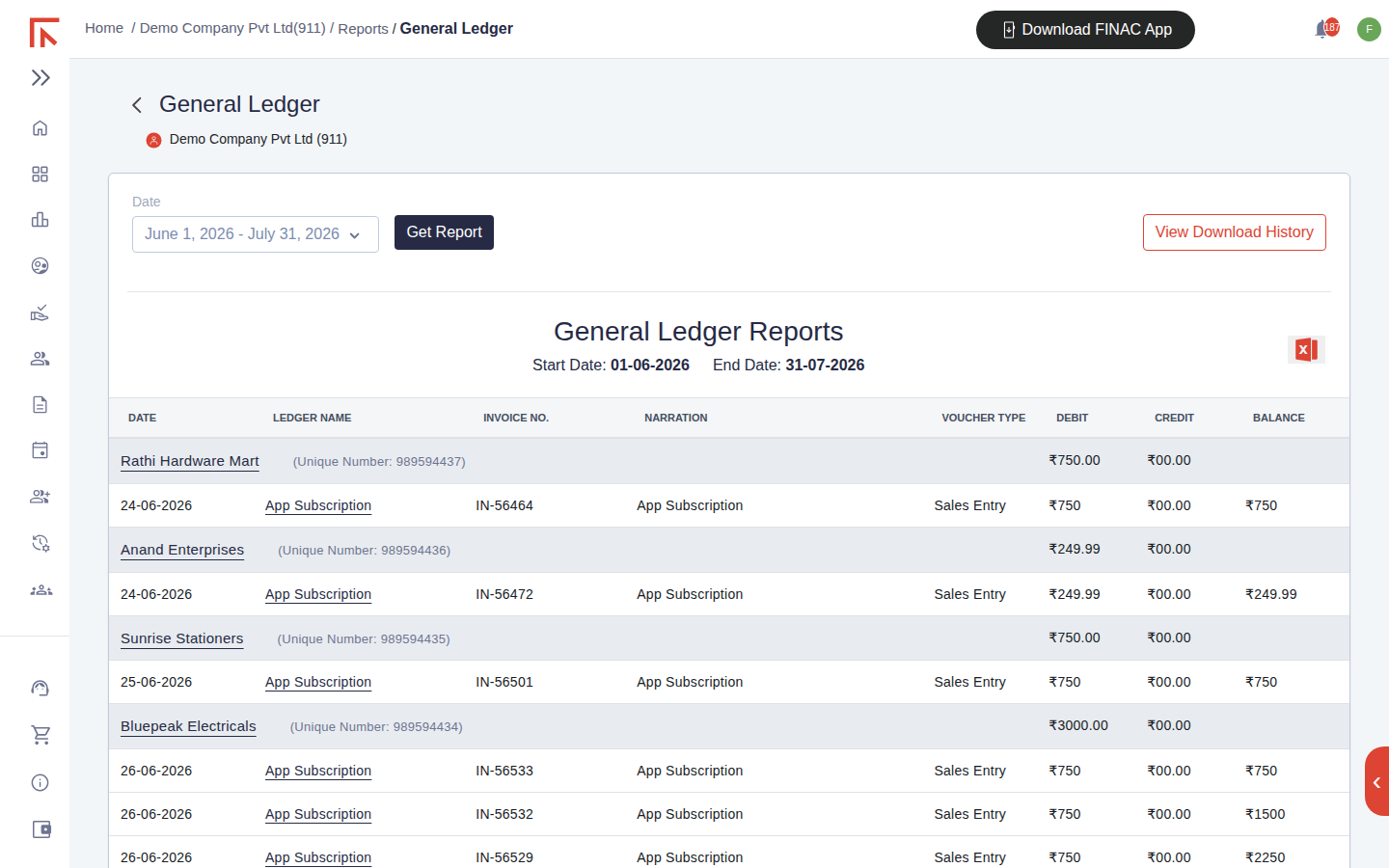
Each ledger appears as a header row with its Unique Number and period totals, followed by its entries with date, contra ledger, invoice number, narration, voucher type and running balance. Customers come first, then suppliers, then the other ledgers. Use View Download History to retrieve a report generated earlier rather than running it again.
Daybook
The Daybook lists every voucher in date order, most recent first, regardless of ledger. It is the report to read when you want to see what was recorded in a period, or to check that a batch of uploaded bills all landed.
- Select View beside Daybook.
- Select Select Date Range, choose the start and end dates, and select Get Report.
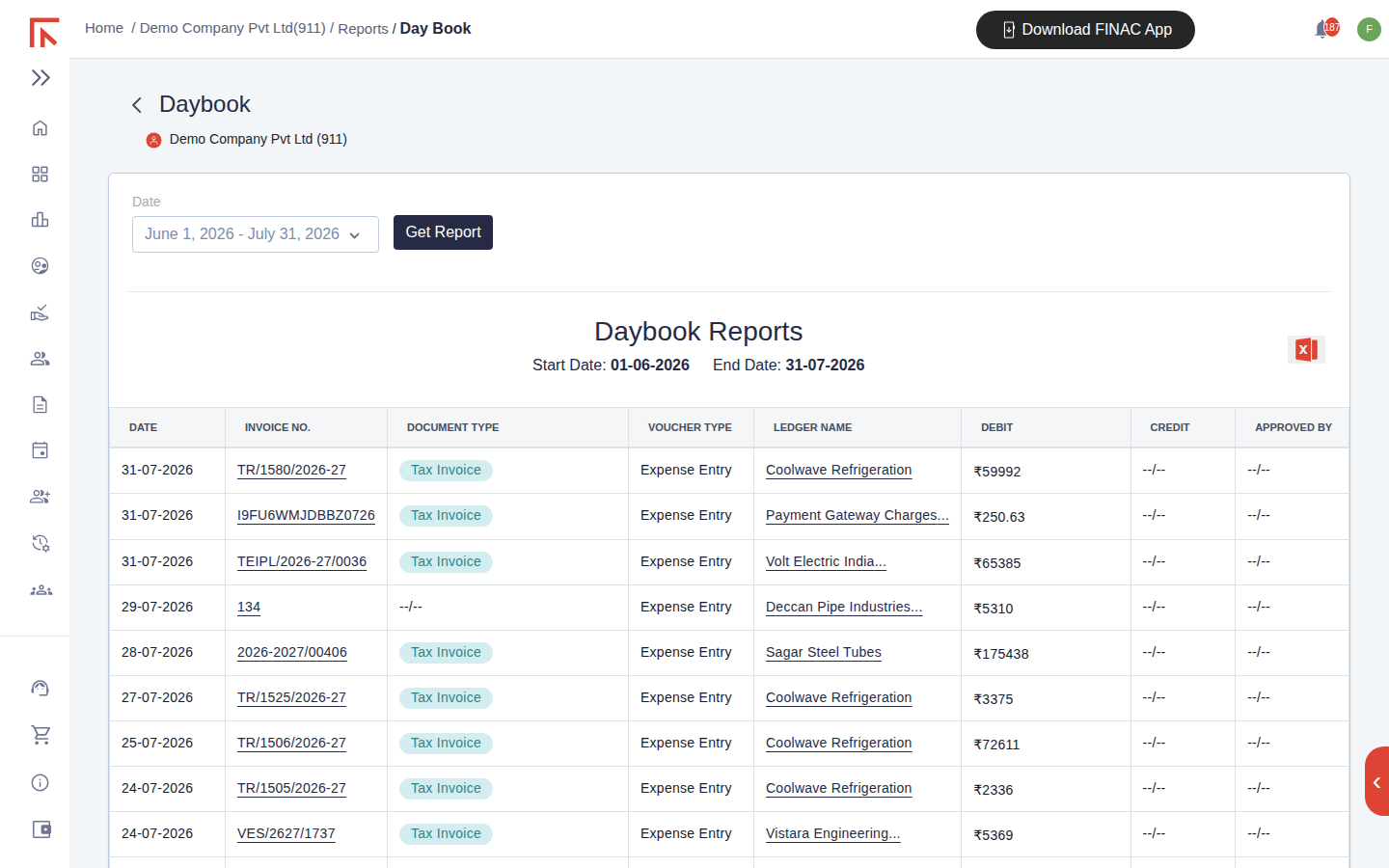
| Column | Meaning |
|---|---|
| Invoice No. | The document number. Selecting it opens the entry. |
| Document Type | Tax Invoice, Bill of Supply, Debit Note and so on, as read from the document. Shows --/-- where the type was not stated. |
| Voucher Type | Expense Entry, Sales Entry, Bank Entry, Journal, Manufacturing Journal. |
| Ledger Name | The party or account the voucher was posted to. |
| Debit / Credit | The voucher amount on the side it was posted. |
| Approved By | The approver, or --/-- if the entry is still unapproved. A Daybook with many --/-- rows is a queue of entries waiting for review. |
Monthly Ledger Summary
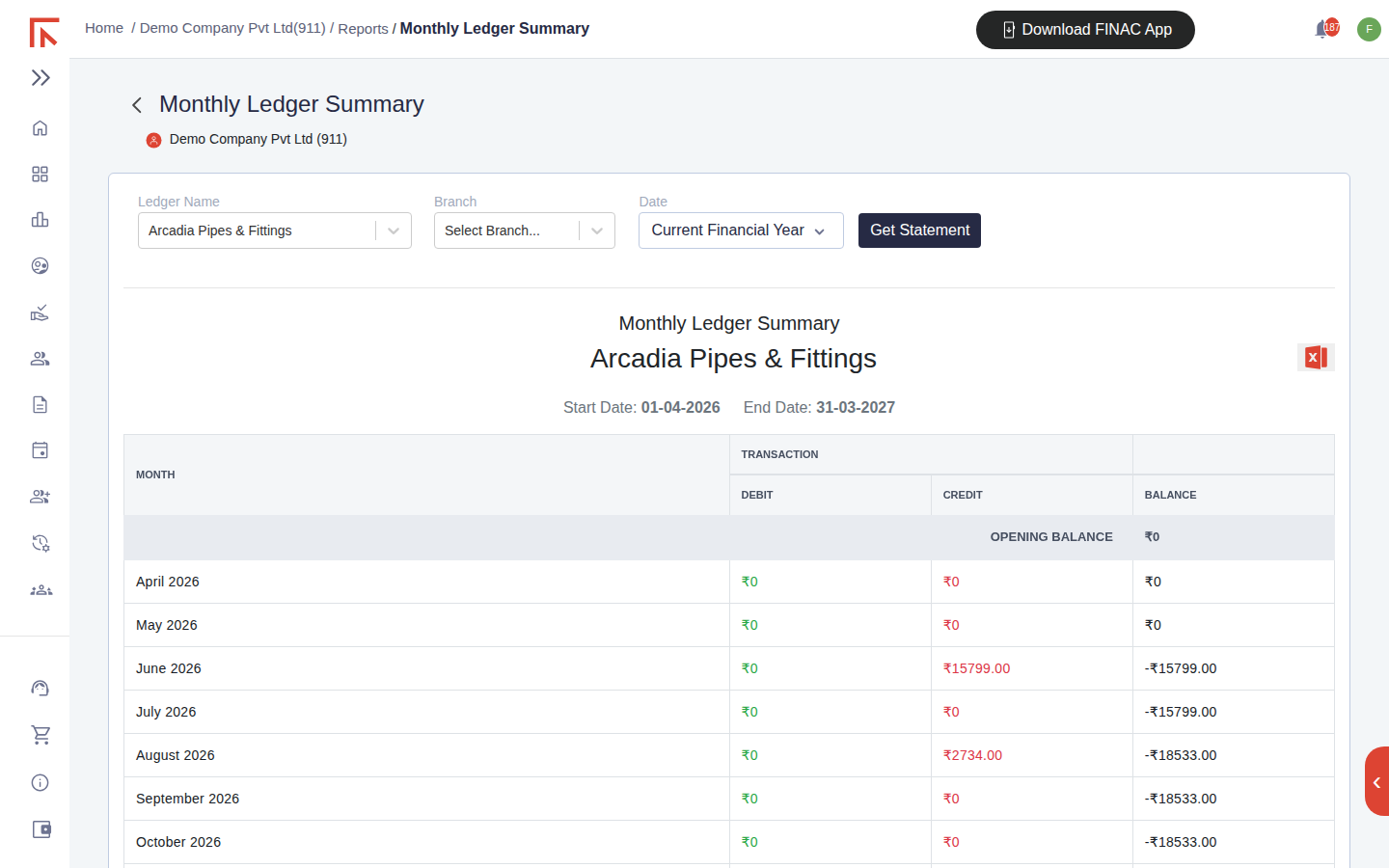
Where the Ledger Statement shows every entry, the Monthly Ledger Summary shows one row per month: total debits, total credits and the closing balance. It answers questions such as how much was bought from a supplier each month, or how a customer's balance has built up, without listing each document.
- Select View beside Monthly Ledger Summary.
- Select the Ledger Name, optionally a Branch, and the financial year, then select Get Statement.
Frequently asked questions
Can I run the Ledger Statement for a custom date range?
The Date control offers the current and previous financial years. For a shorter window, run the General Ledger or Daybook with a custom range, or download the statement and filter it in Excel.
The supplier's closing balance does not match their statement of account.
Compare the two statements line by line. The usual causes are a bill the supplier has raised that has not yet been uploaded to Finac, a payment made from an account whose bank statement is not yet uploaded, or a debit note the supplier has not recorded. Upload the missing document and refresh.
Why does a payment appear on the ledger but the bill still shows Pending?
The payment was posted to the ledger without being allocated to the bill. The ledger balance is correct; open the bill and add the payment under Payment Details so the status updates.
Why is the General Ledger limited to 90 days?
It lists every entry on every ledger, so a full year for an active business would be thousands of rows. Run it quarter by quarter, or use the Trial Balance for the year-level view and drill into individual ledgers with the Ledger Statement.